DFX BTC Taro Wallet — Handbook
This guide walks through the app picture by picture, in the order the steps appear in the wallet. Every image is a real capture from the app.
01Getting started
01Getting started
Open the app for the first time and create a wallet.
On first launch the app creates a wallet on your device. The keys stay on the phone. DFX has no access to them and cannot restore a lost wallet. That is why the disclaimer comes first, and why the step after creating a wallet is always the backup.
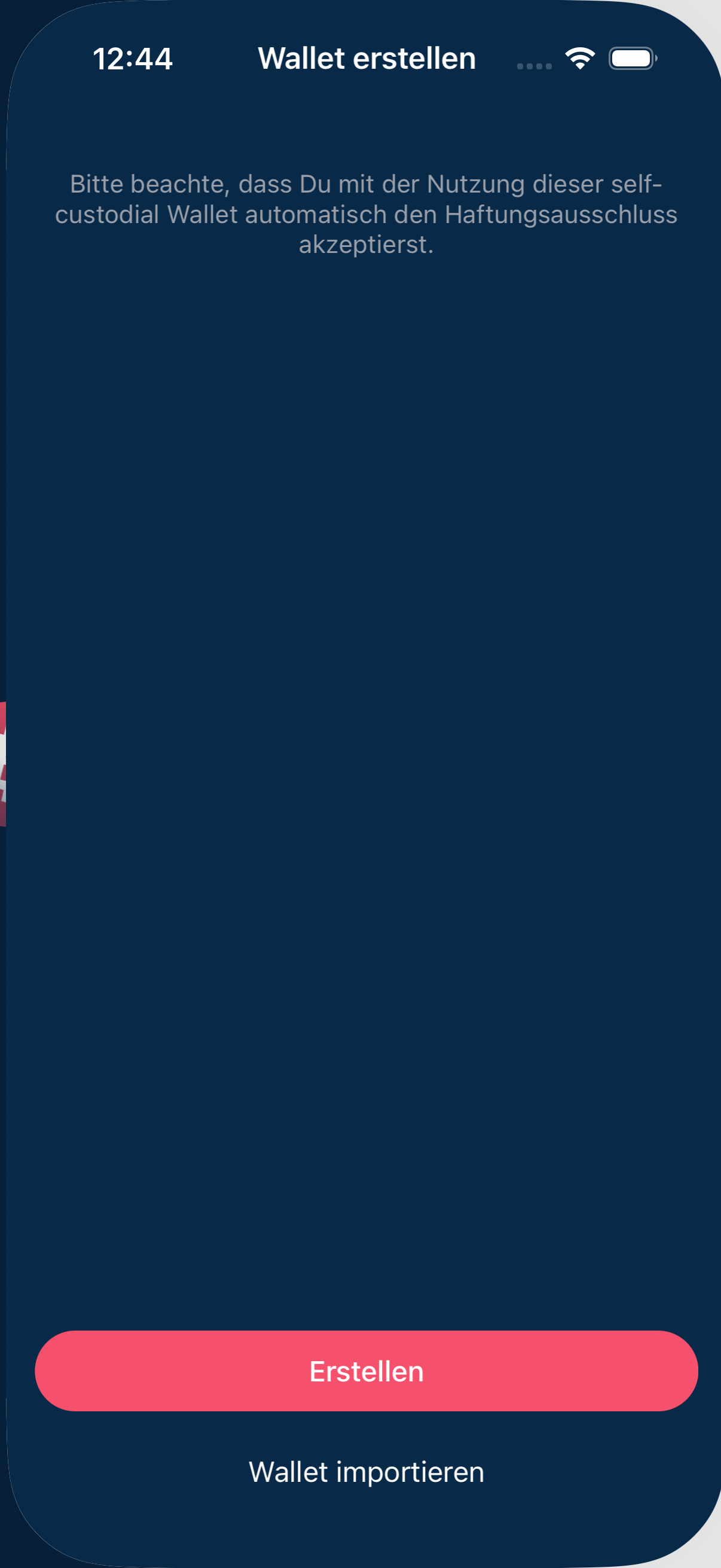
Before the first wallet the app points out that it keeps the keys itself: they live on the device, not with DFX.
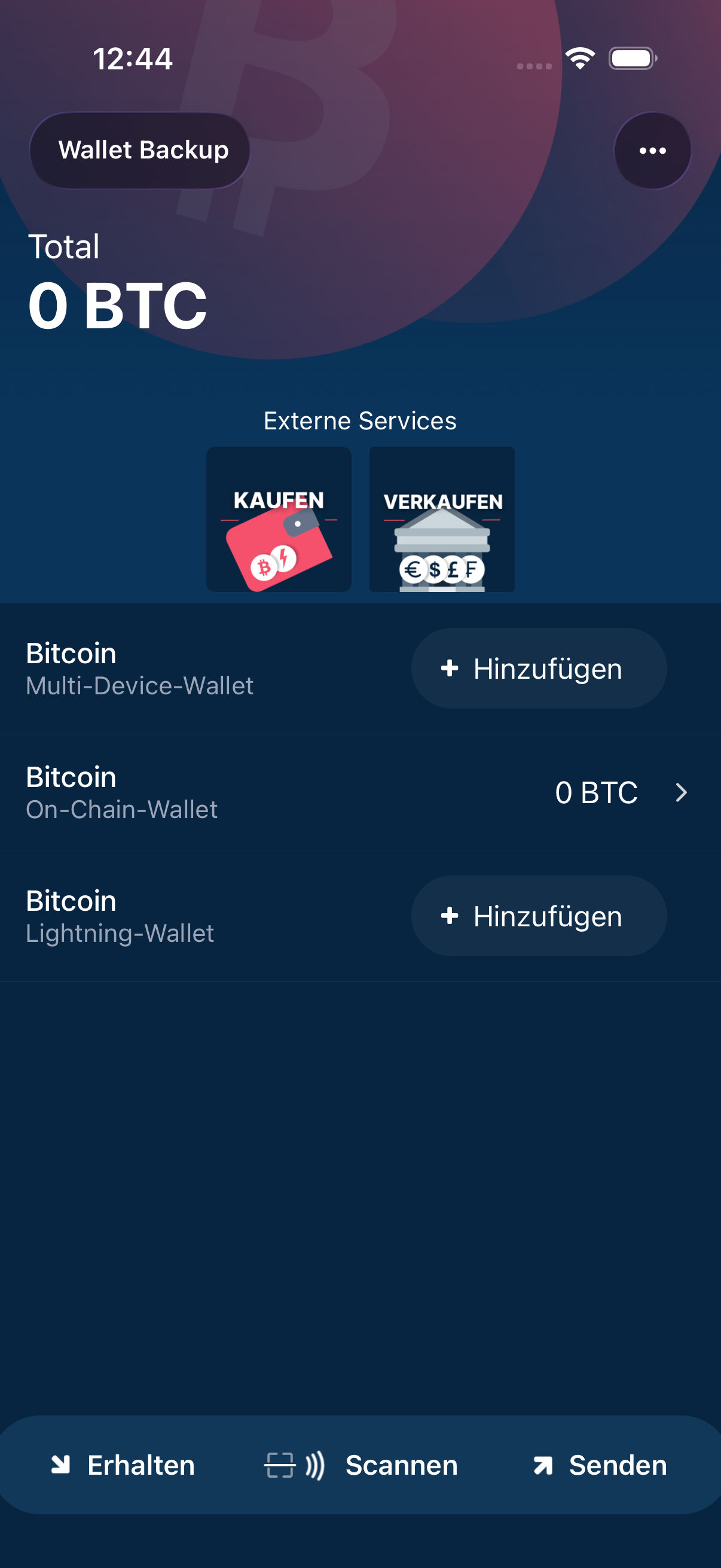
Once created, the overview shows your balance and your wallets. Every other path starts here.
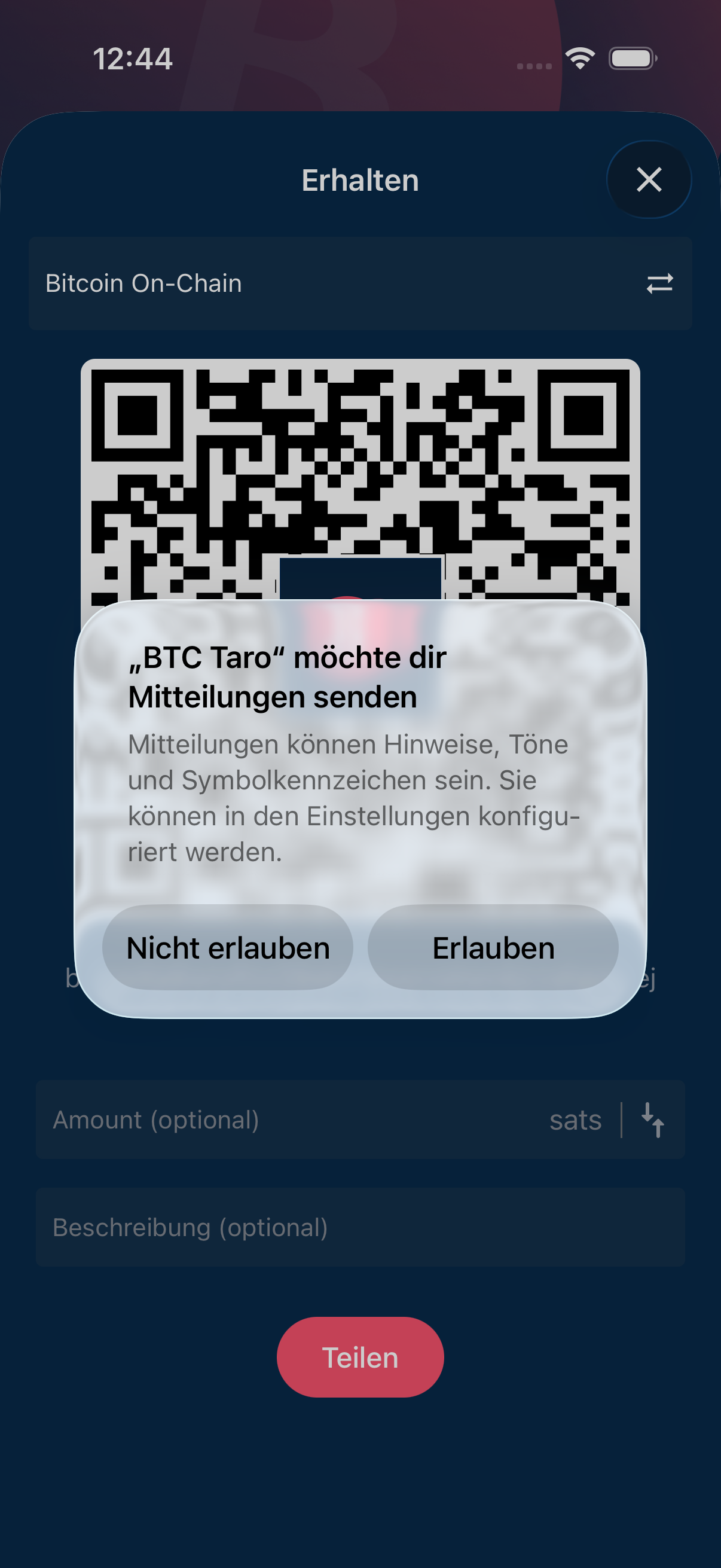
The first time you open “Receive”, the phone asks for permission to send notifications. That is how the app reports incoming payments.
02Receiving bitcoin
02Receiving bitcoin
Show an address and accept a payment.
To receive, the wallet shows an address as a code. Whoever pays scans that code. Amount and description are optional and only help you recognise the payment later. The wallet creates a new address for every payment. That is intended, and it is good for your privacy.
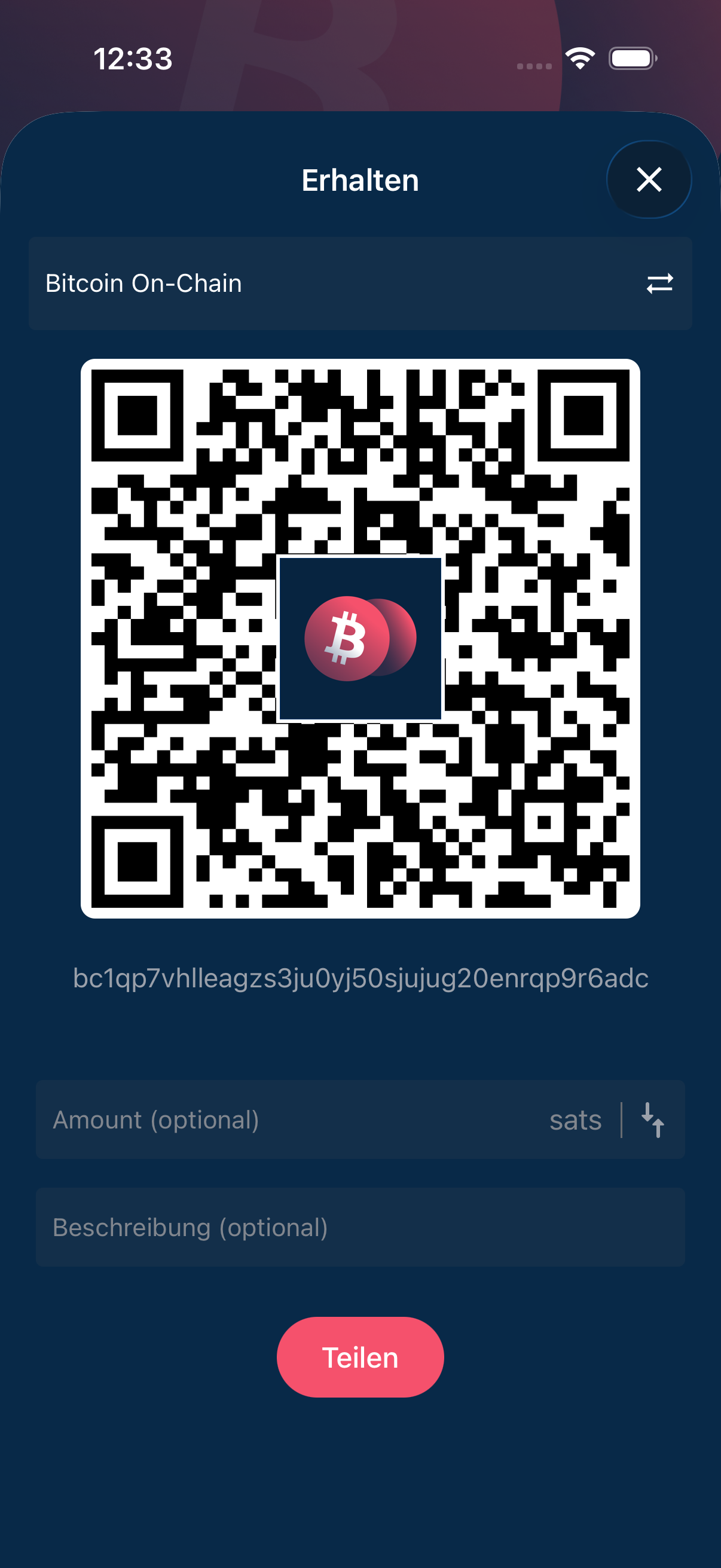
The code holds the address for receiving. Amount and description are optional.
03Sending bitcoin
03Sending bitcoin
Make a payment, usually with the scanner.
Sending needs the address of the recipient. The scanner is the easiest way: it reads the code of the other party and fills in address and amount by itself. A payment in bitcoin cannot be recalled once sent. So check the address and the amount once more before you confirm.
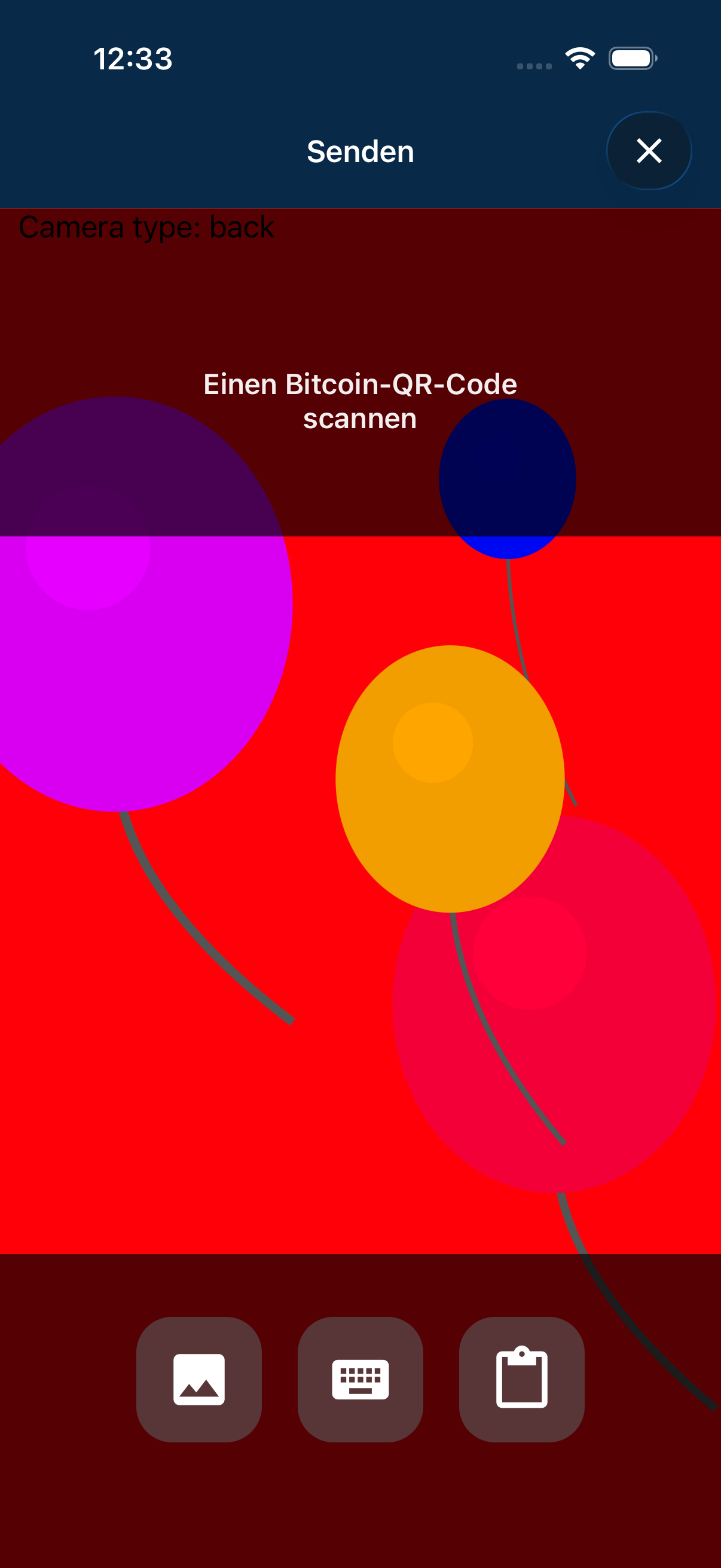
The scanner reads the code of the recipient and takes over address and amount.
04Backup and security
04Backup and security
Secure the recovery phrase and export the wallet.
The recovery phrase of twelve words is the wallet. Whoever holds it holds the money. Whoever loses it and loses the device has lost the money. It belongs on paper in a safe place, not in a photo, not in a chat, not in the cloud. In this chapter the phrase and the code for the export are blacked out, because otherwise they would sit in a public repository.
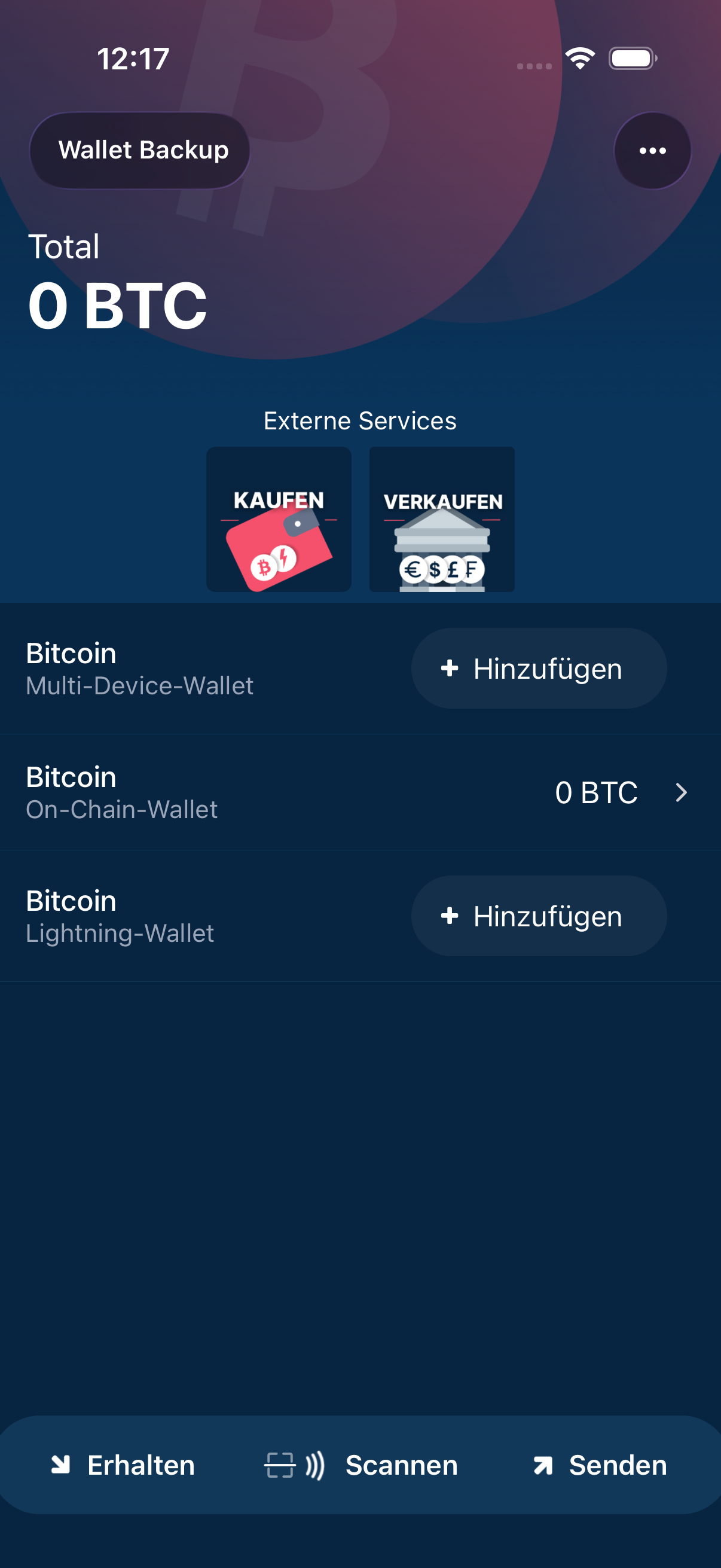
The detail page of a wallet with balance, transactions and the buttons for receiving and sending.
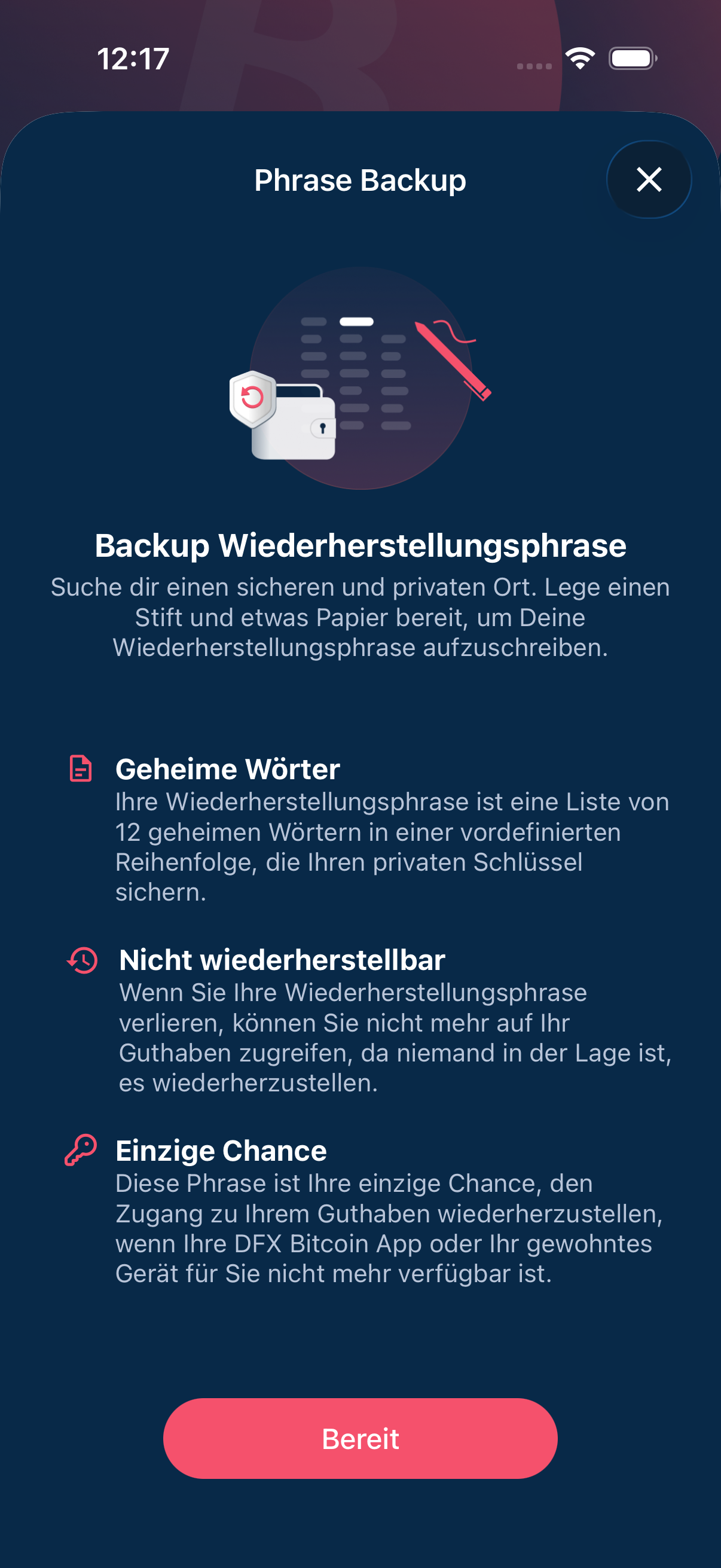
Before showing them, the app explains what the twelve words mean and why nobody else may see them.
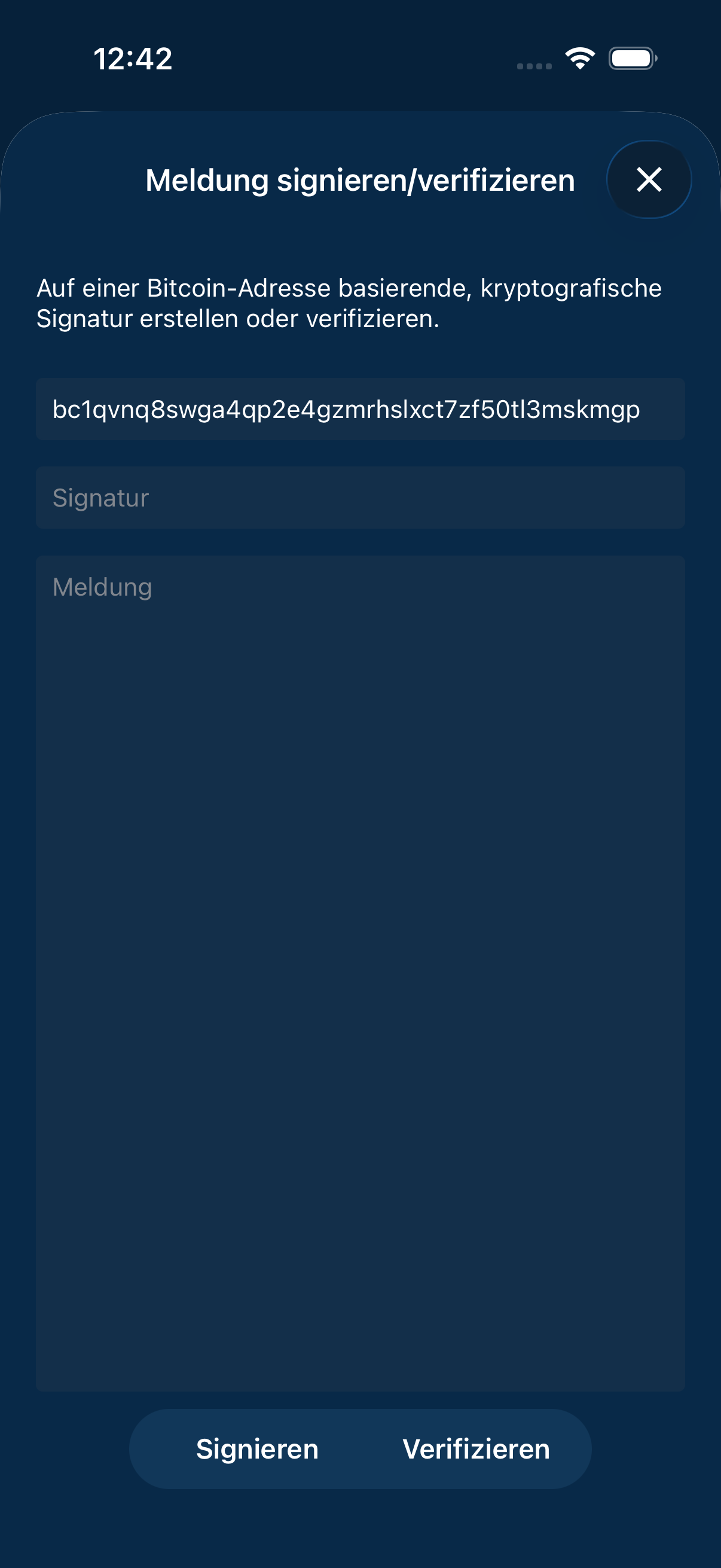
The private key can sign a message. That proves an address belongs to your own wallet.
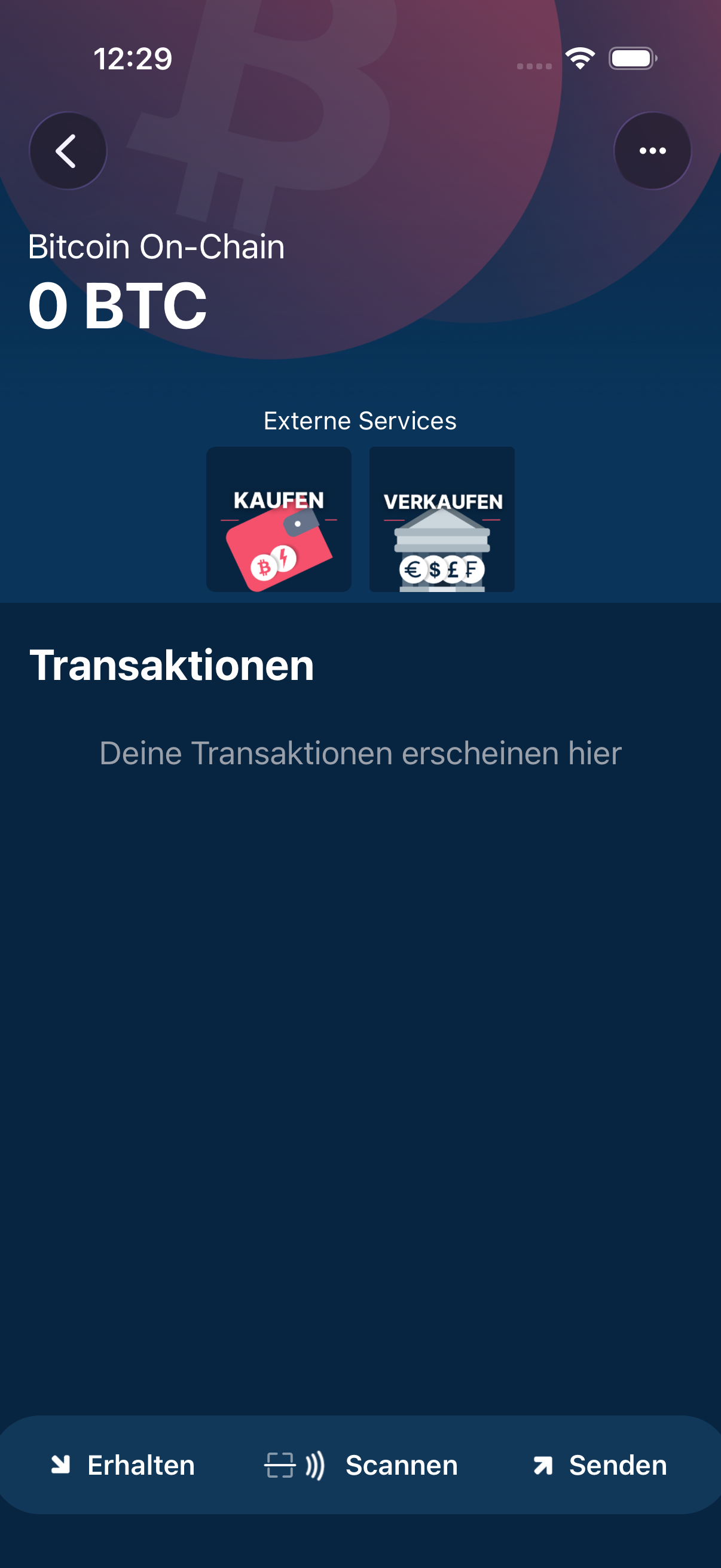
The list of all incoming and outgoing payments of this wallet.
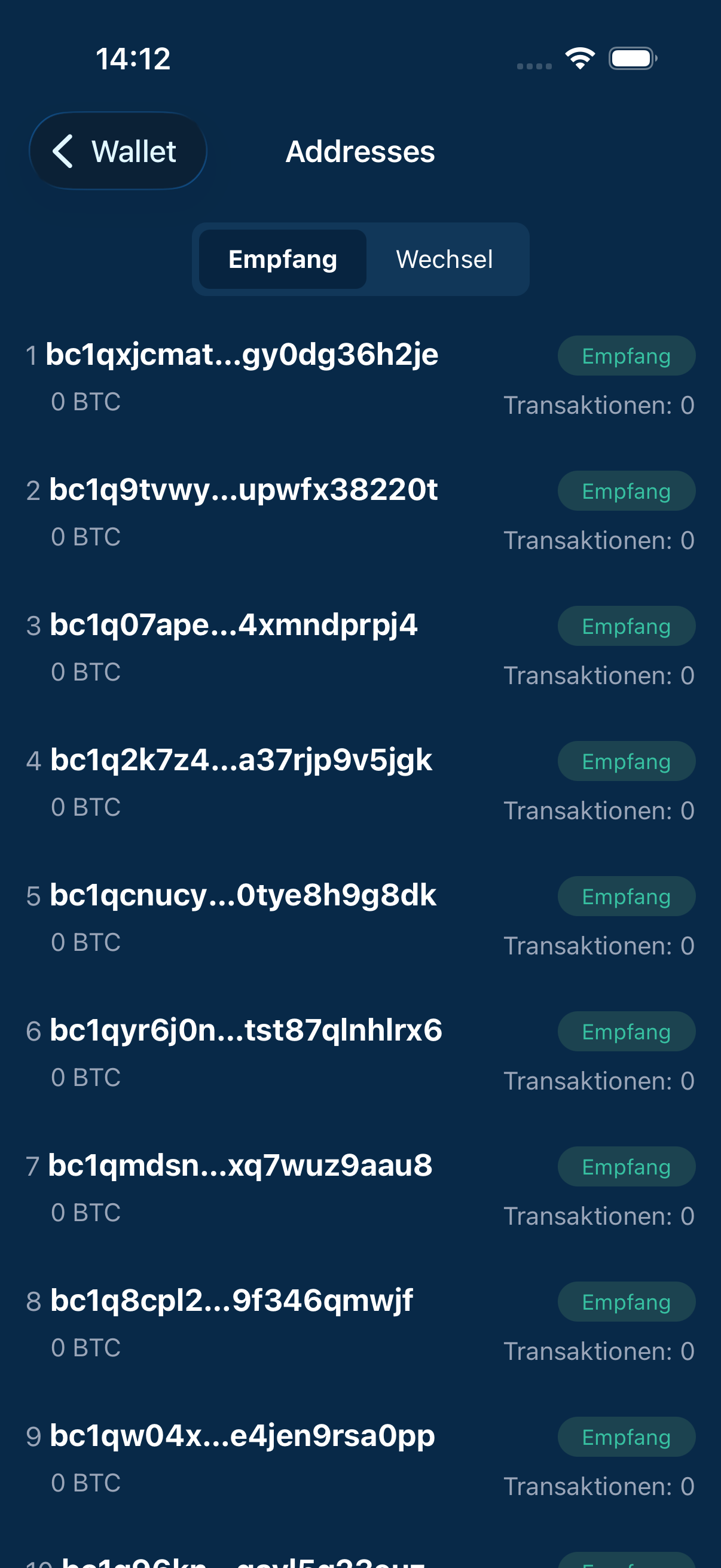
All addresses of the wallet, with balance and usage. New addresses for receiving appear automatically.
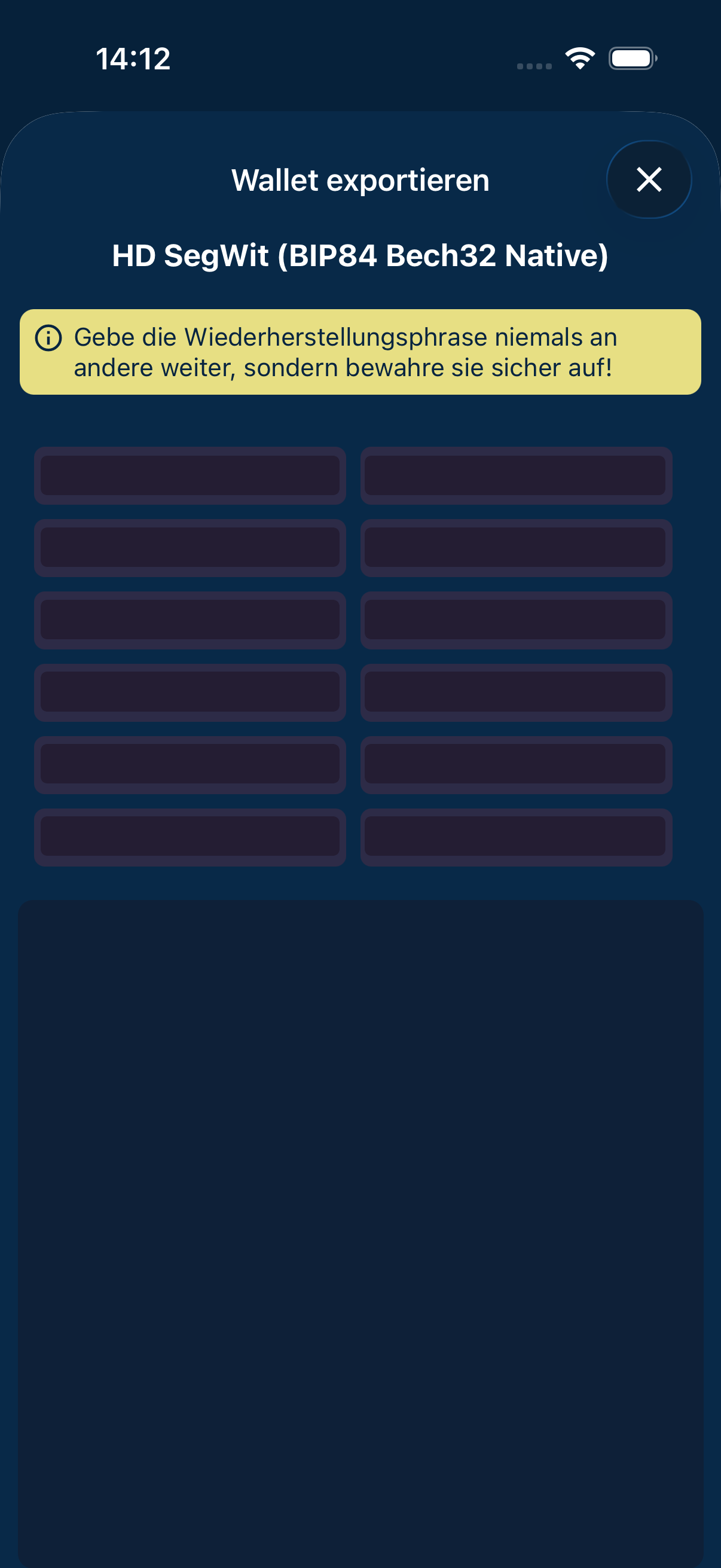
The wallet can be exported as a code to move it to another device. The code contains the key and belongs in front of nobody else's camera.
The public key lets you follow incoming payments without being able to spend. It does reveal every address of the wallet.
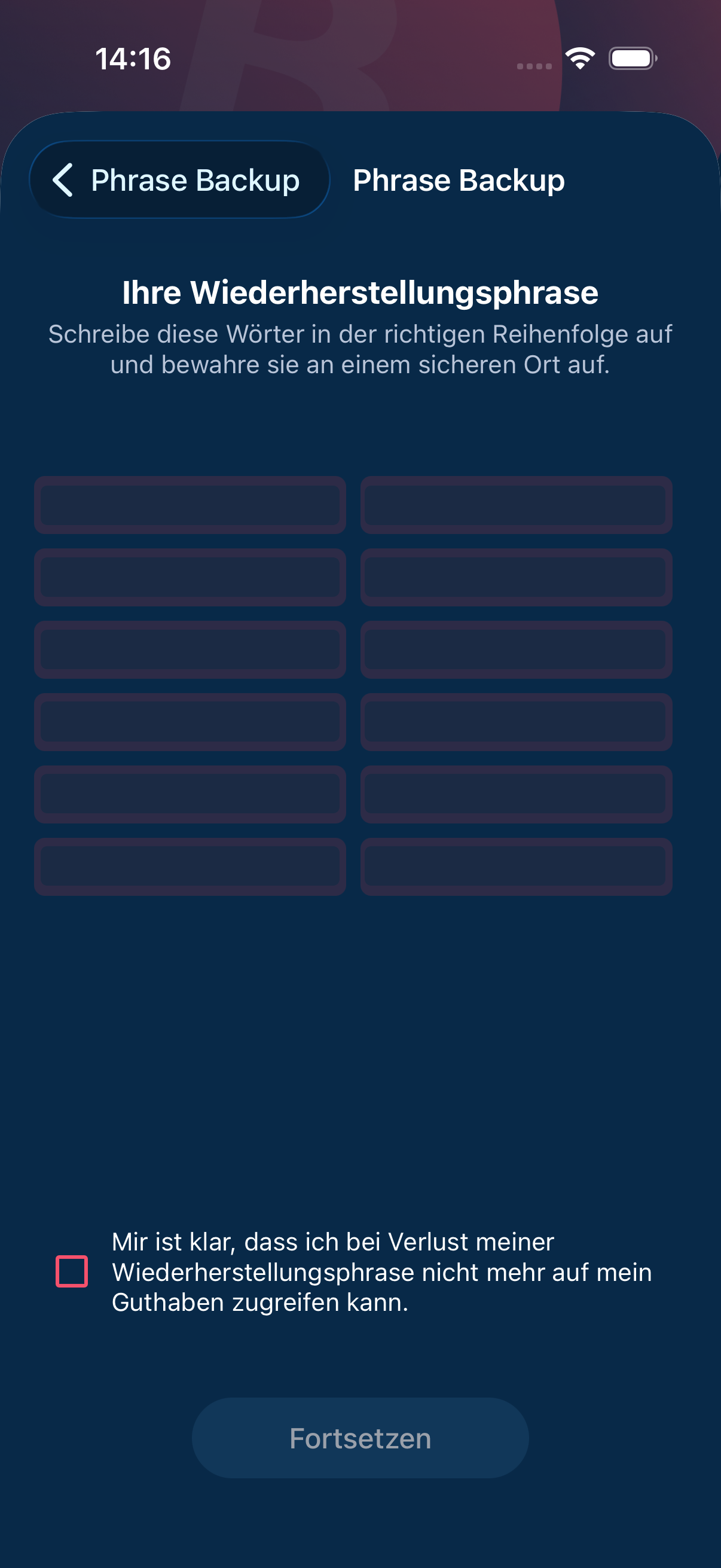
The recovery phrase. Write it on paper, keep the order, store it safely. Blacked out here for the handbook.
05Lightning
05Lightning
Small payments, instantly; because the fee does not depend on the amount, it weighs more proportionally on very small payments.
The Lightning wallet is for small, fast bitcoin payments; it runs on Spark. New users create it with a tap on “Add” in the Lightning row of the overview. Buying and selling are there as on the other wallets; there is no payment card. Selling opens the DFX service in the browser and then returns to the app, where the amount is confirmed once more. Receiving shows the wallet's Lightning address; with an amount and a description it creates a Lightning invoice instead.
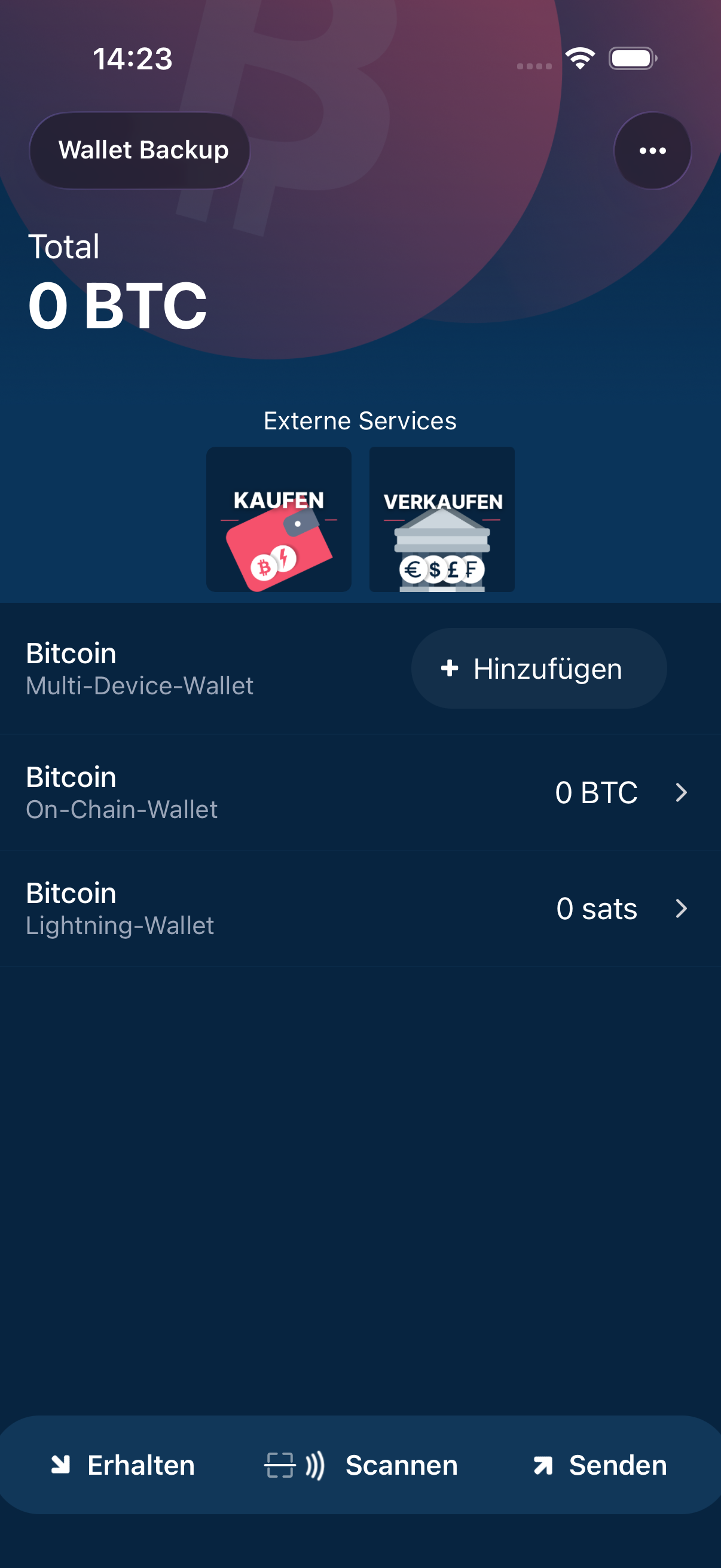
The home screen once the Lightning wallet sits next to the wallet on the blockchain.
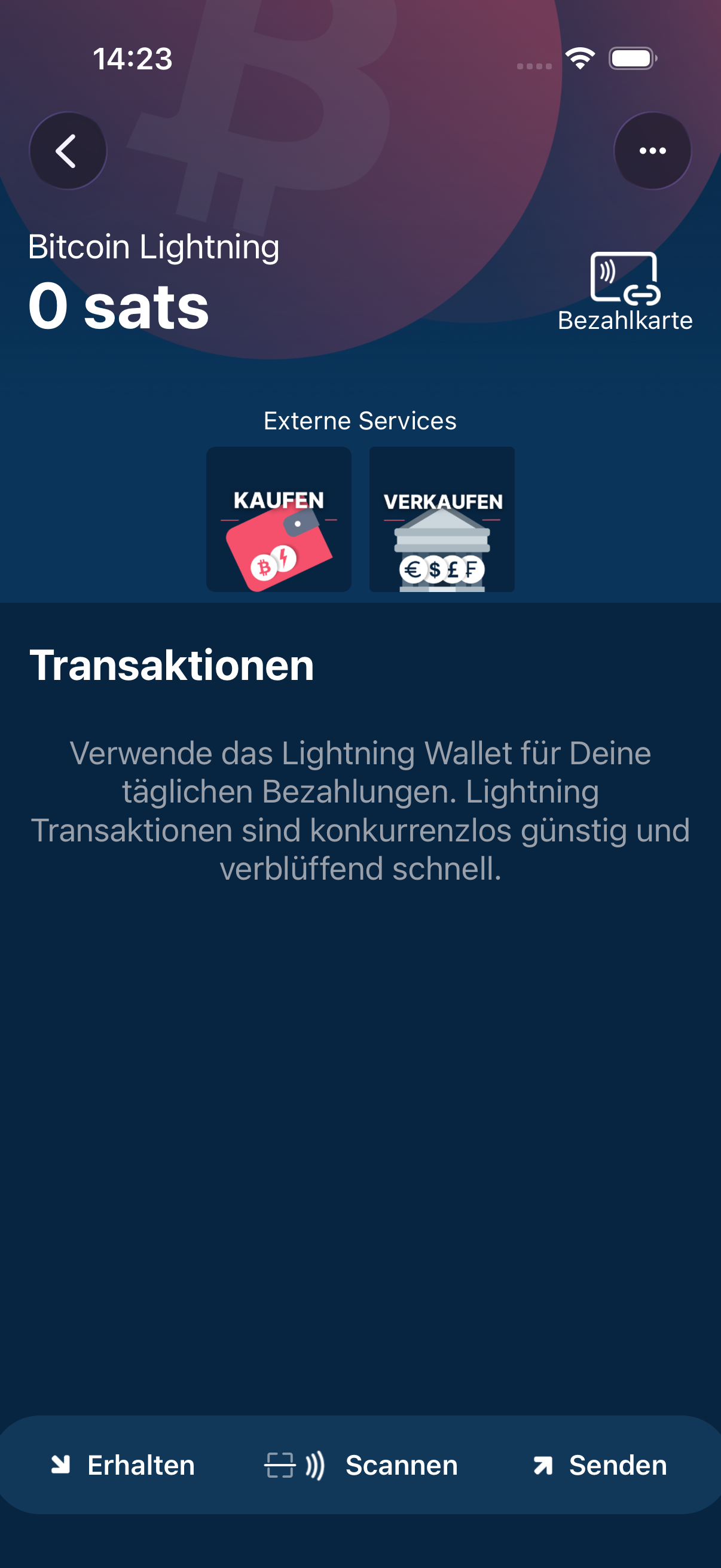
Balance and payments of this wallet. Buy and sell sit below. There is no payment card.
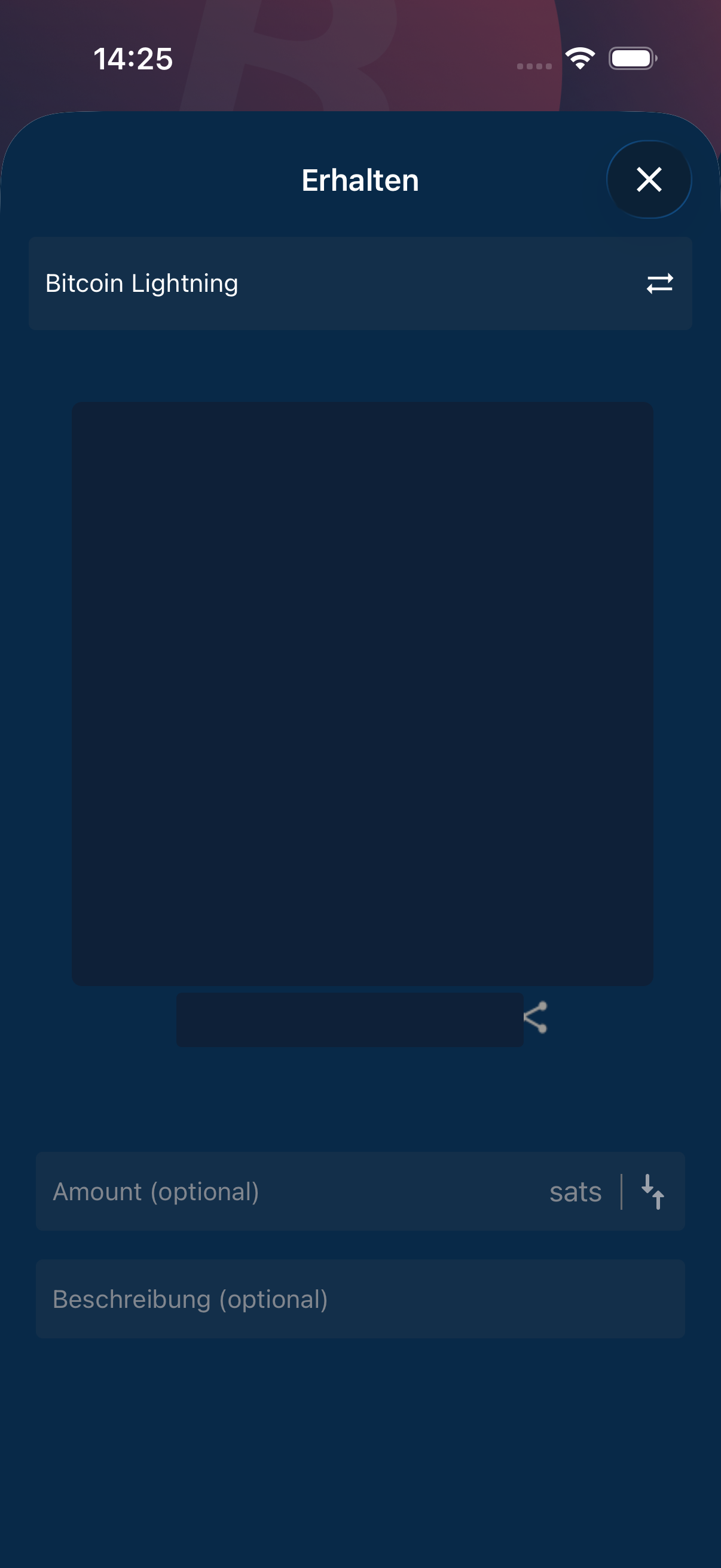
The code holds the wallet's Lightning address. With an amount and a description it becomes a Lightning invoice instead.
06More wallets: adding and importing
06More wallets: adding and importing
A wallet across three devices, a Lightning wallet, reading in an existing wallet.
Besides the wallet from the first launch you can create more: a wallet spread across three devices, where two of them approve every payment, or the Lightning wallet with a tap on the row in the overview. There is no choice of provider. A wallet created elsewhere can be read in from the recovery phrase, a private key or a code.
Adding another wallet 2 images
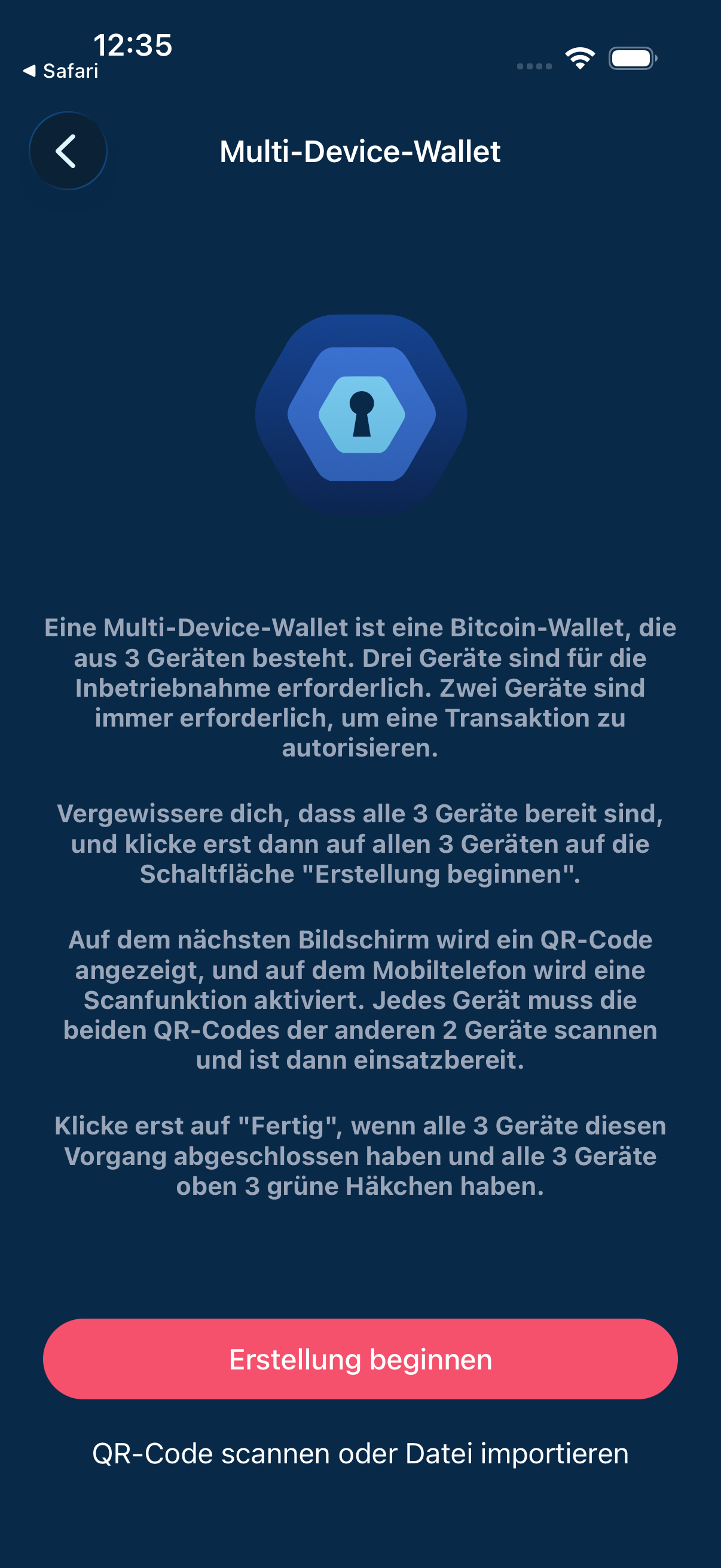
One wallet spread across three devices: two of them approve every payment. That protects you from a single lost device costing you the money.
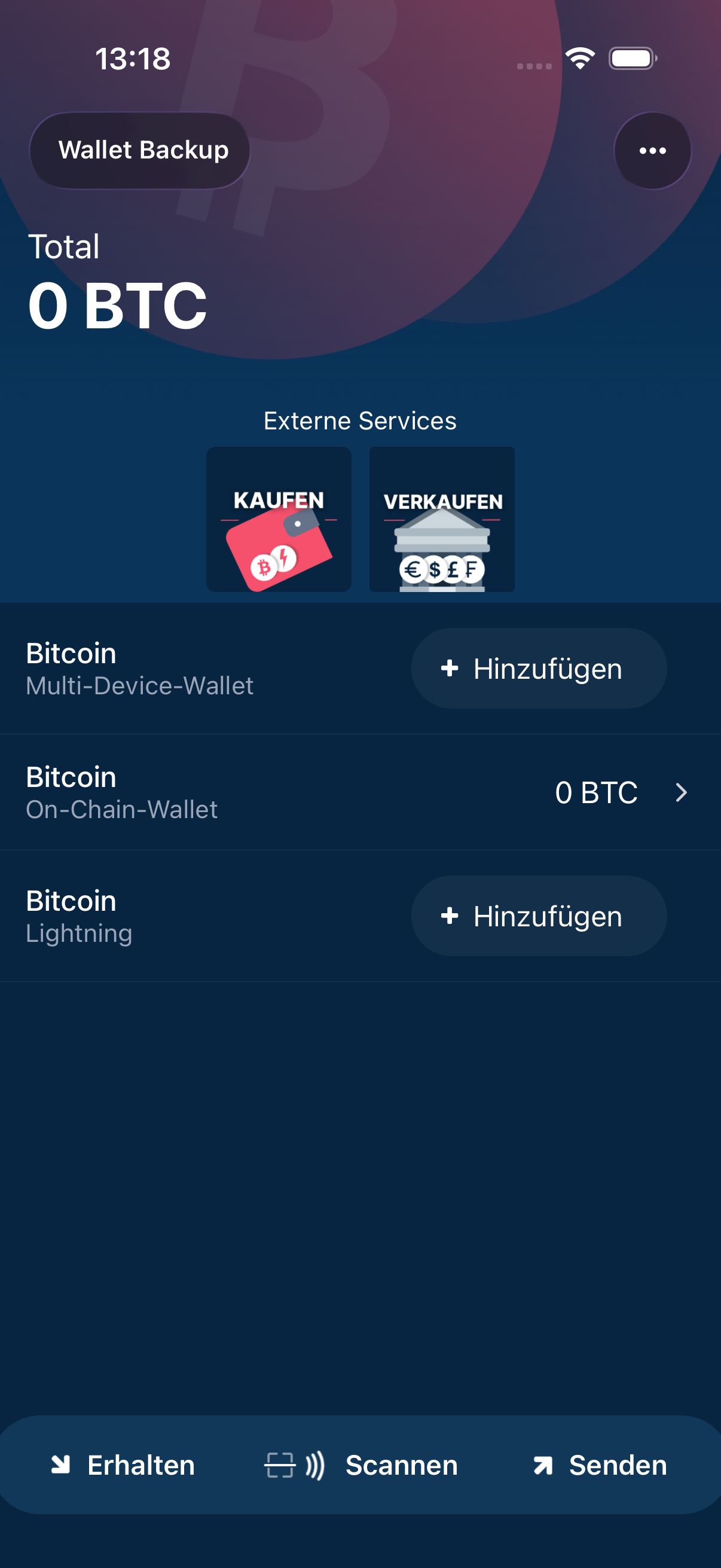
A tap on “Add” in this row creates the Lightning wallet. There is no further choice.
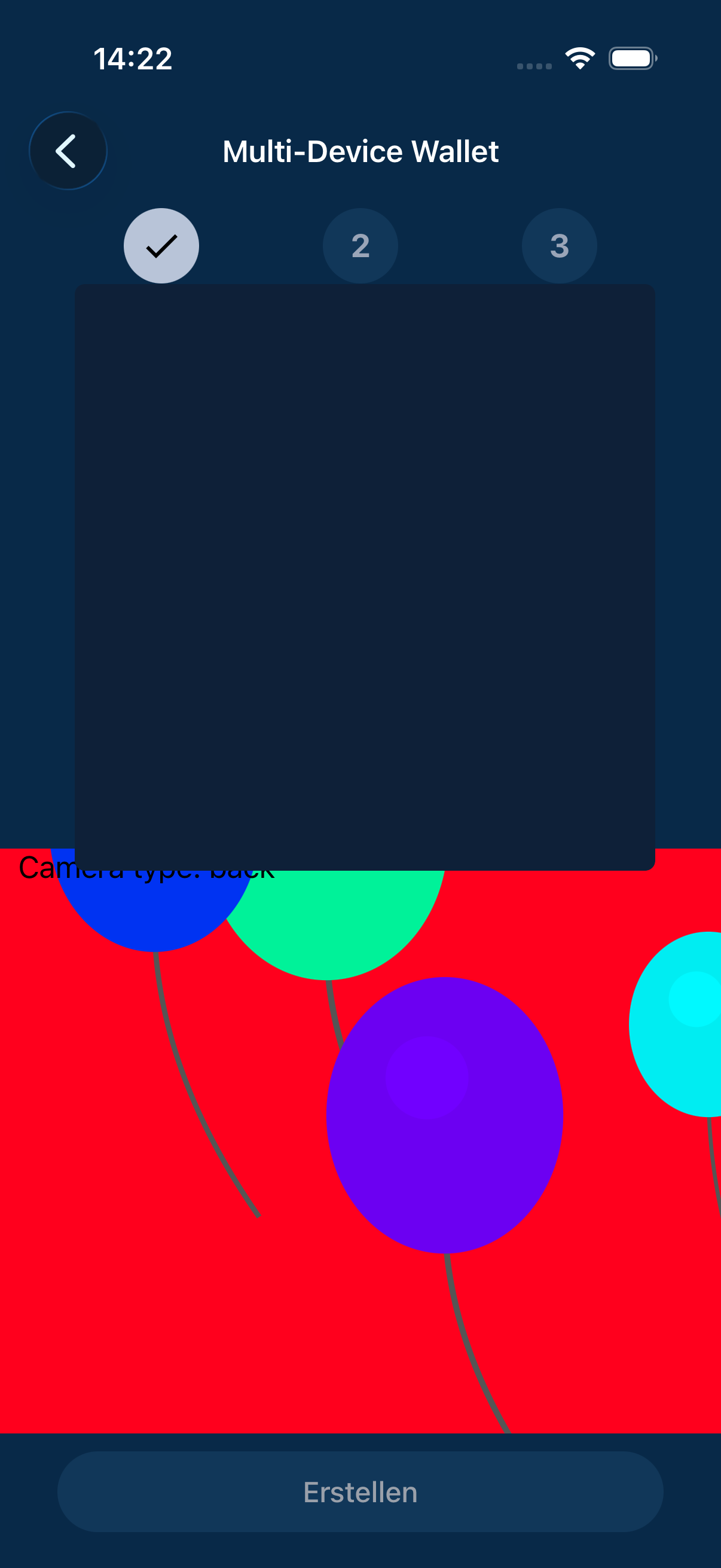
Each of the three devices shows its own code and scans the other two. The indicator at the top follows the progress.
Importing a wallet 3 images
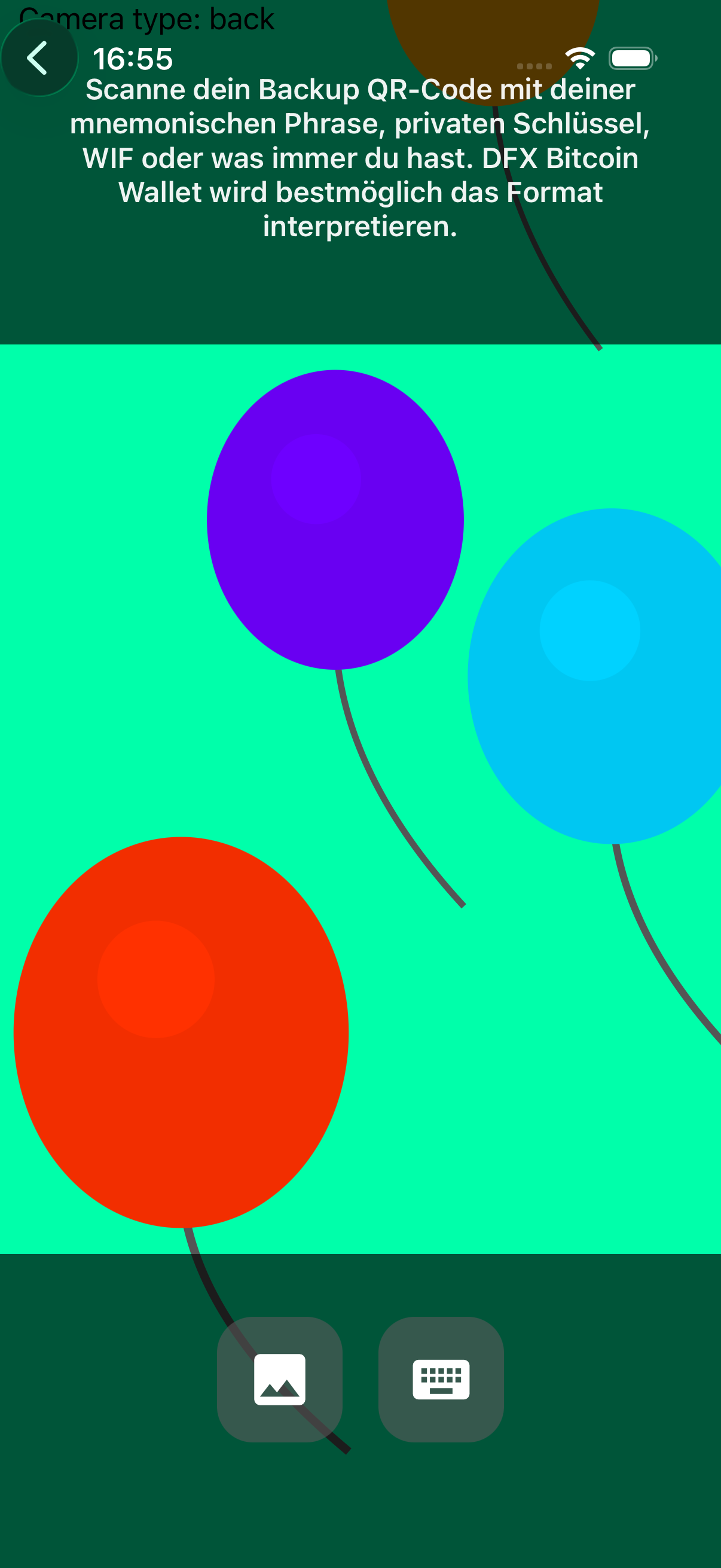
An existing wallet can be read in from a code.
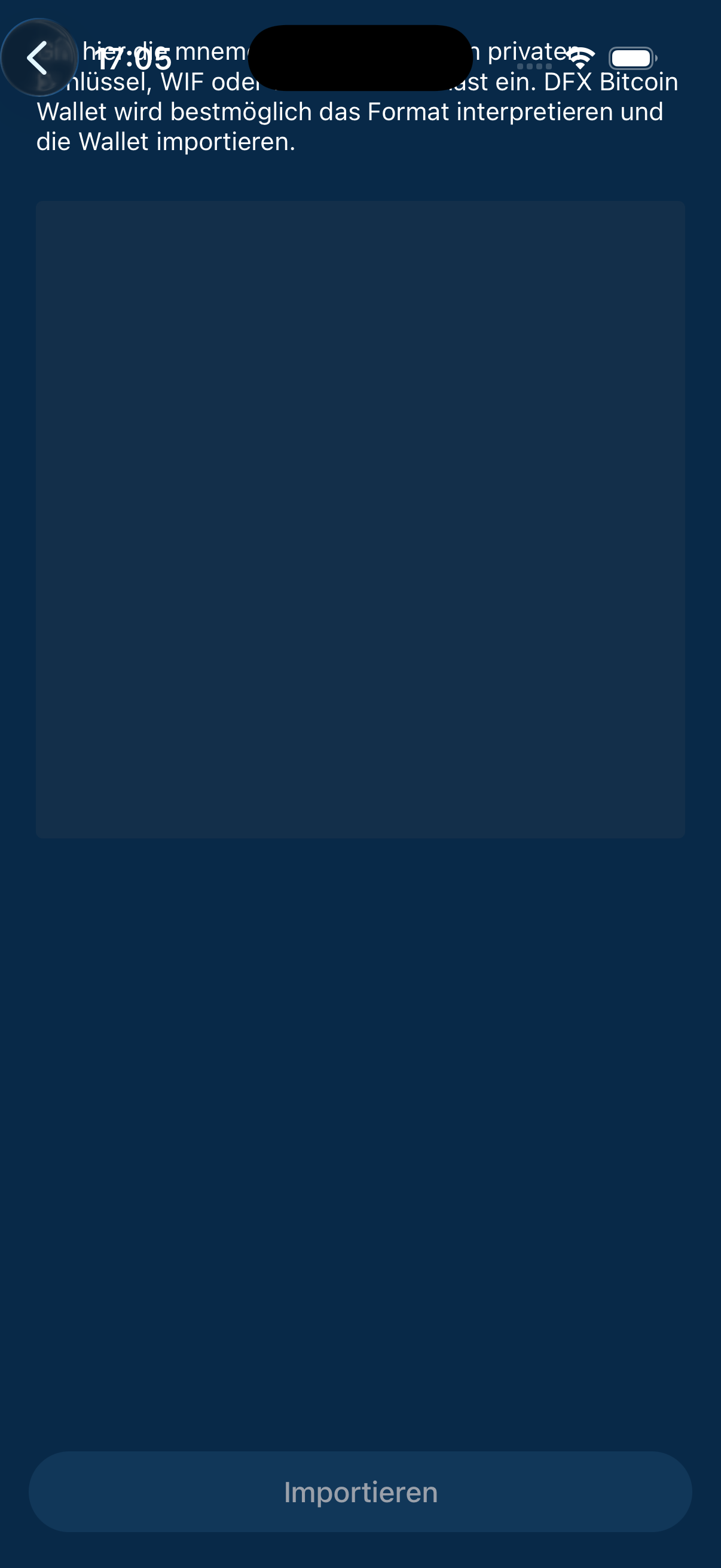
You can also type the recovery phrase, a private key or a WIF by hand.
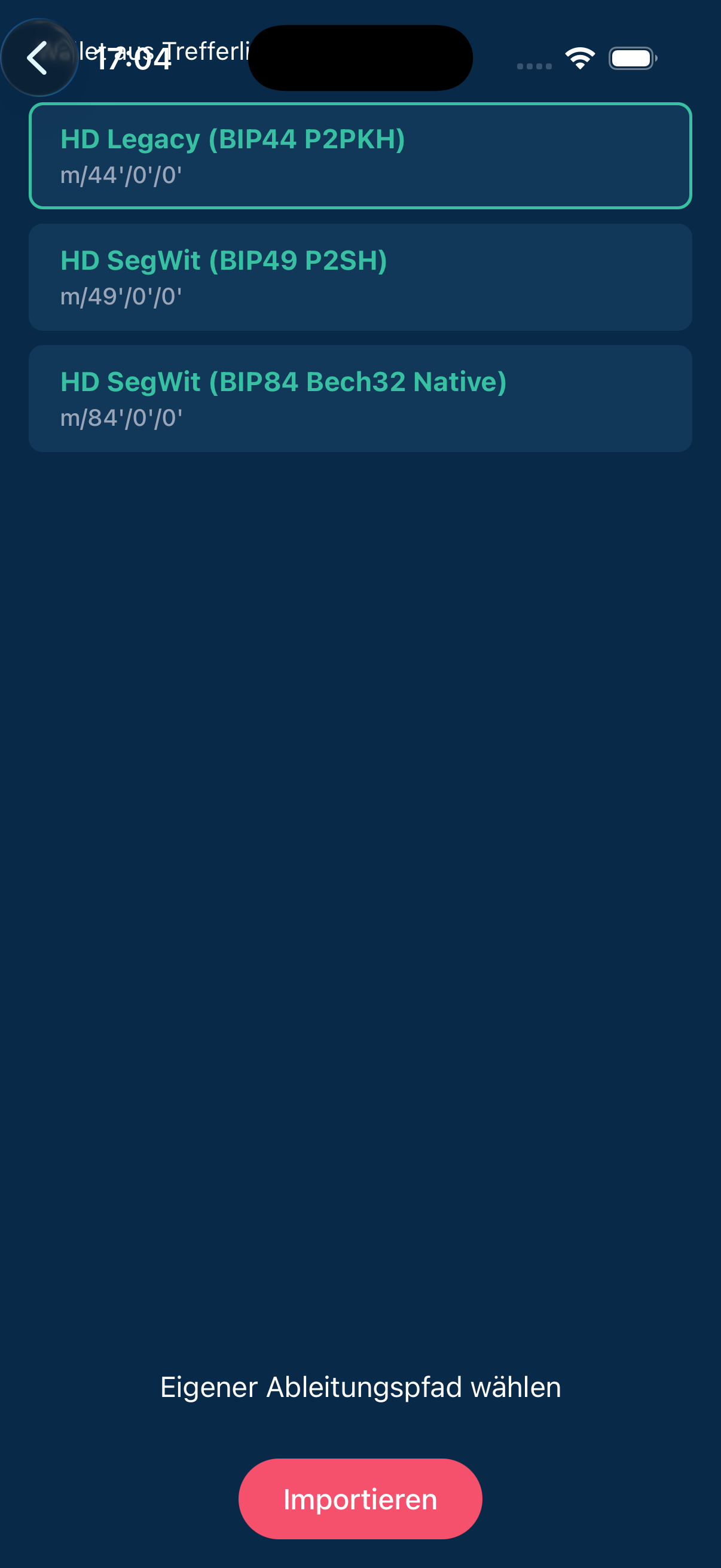
The app detects which kinds of wallet match the input and shows the matching derivation path.
07Settings
07Settings
Currency, language, security, network and tools.
The settings let you change the displayed currency and the language, put a lock on the app and change the server of Electrum in use. The tools are meant for rare occasions, for instance to check whether an address belongs to your own wallet.
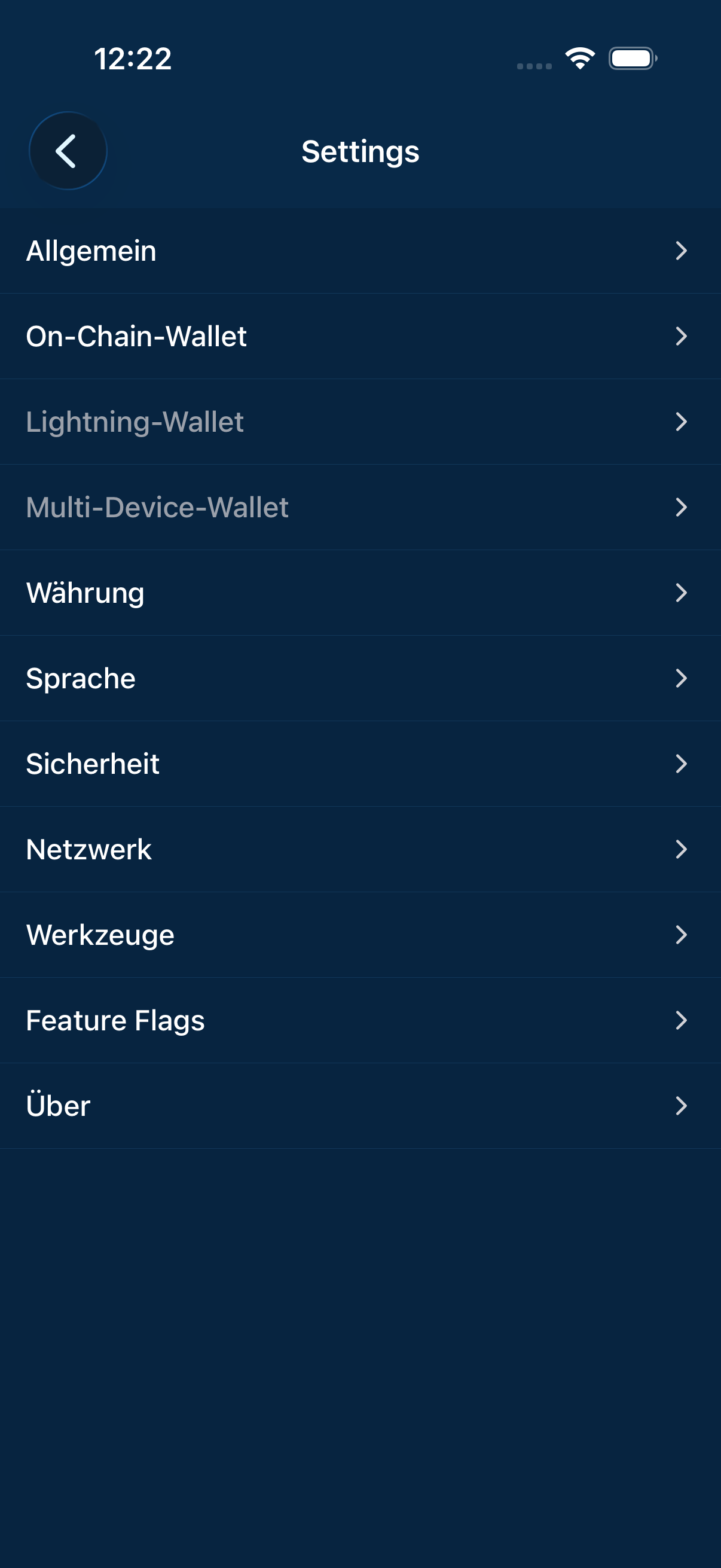
The way into every setting.
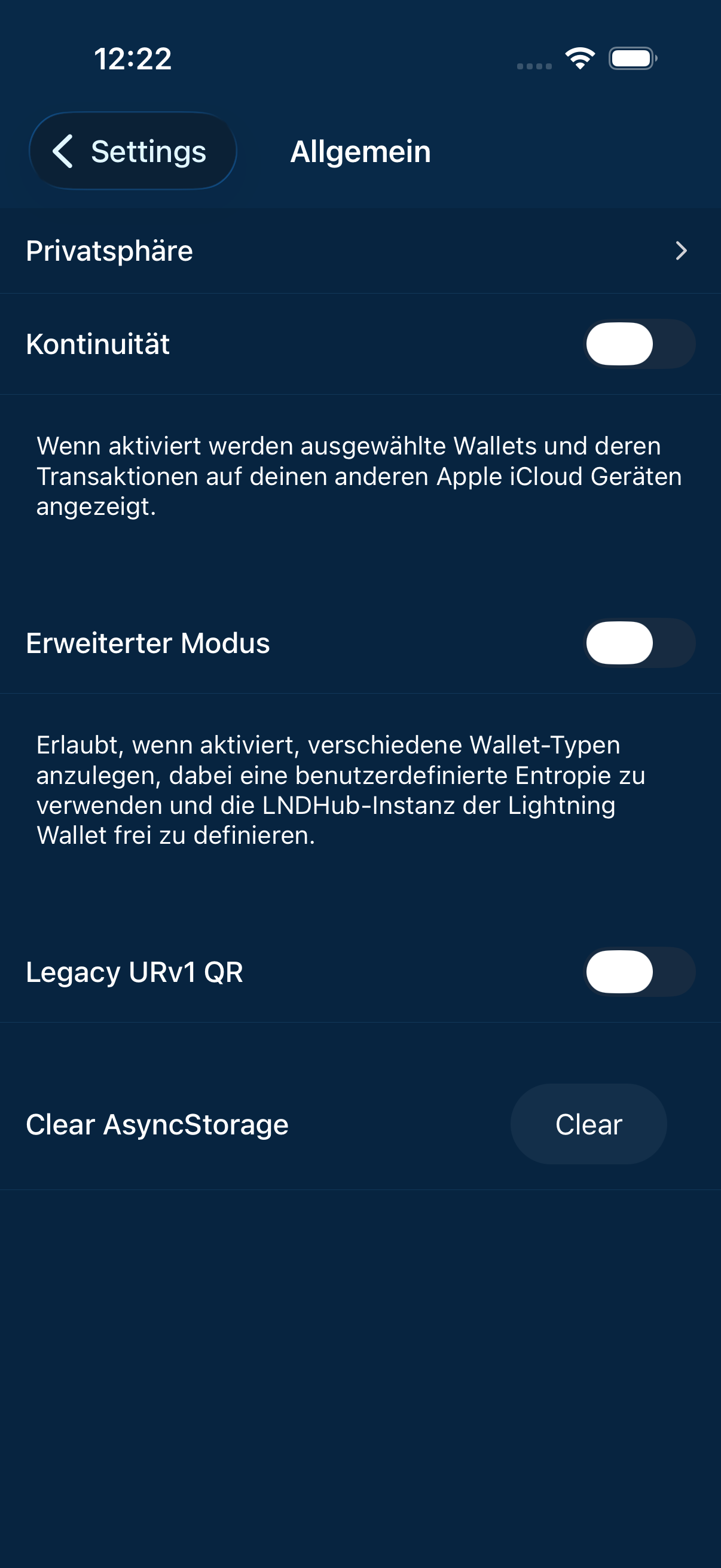
Basic settings of the app.
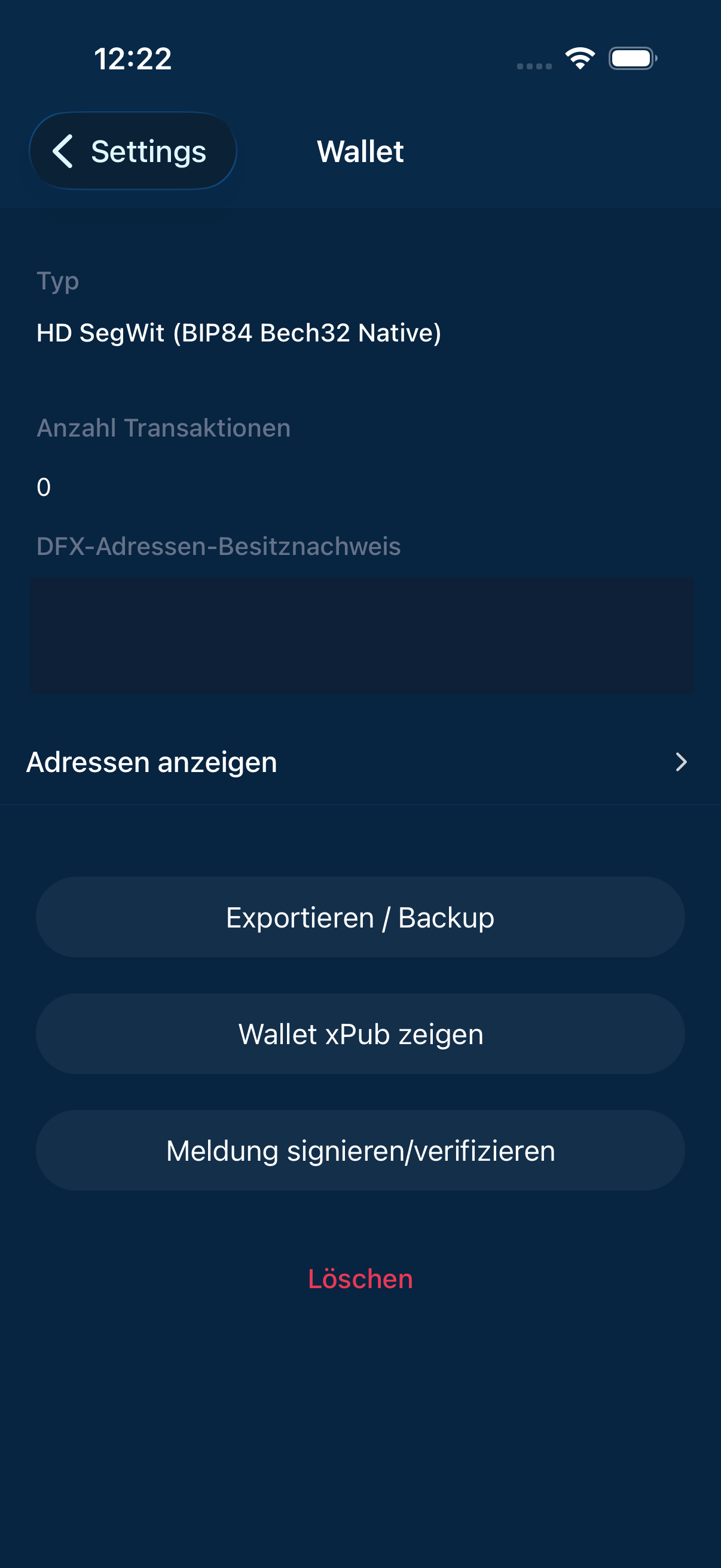
Settings that apply to the selected wallet only.
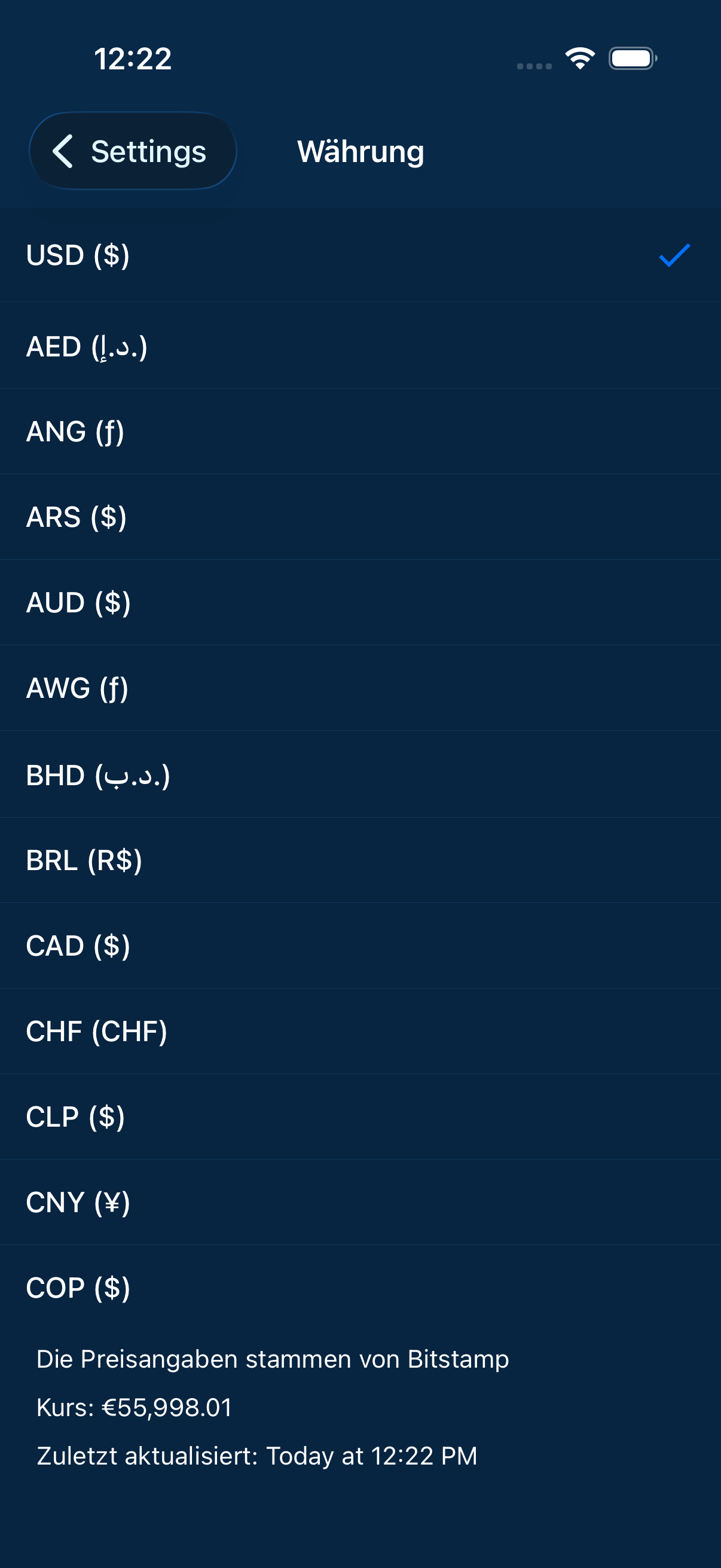
The currency shown next to amounts in bitcoin.
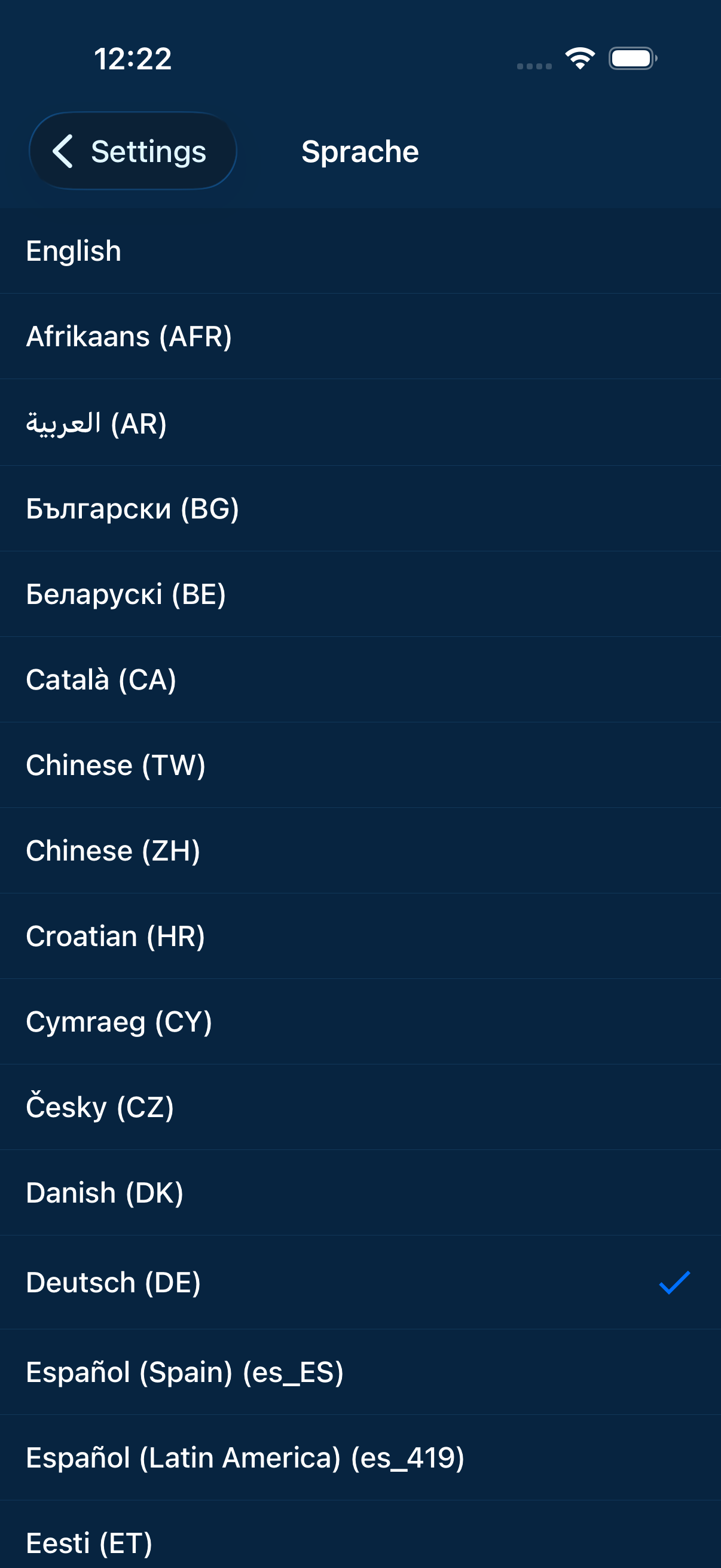
The language of the interface.
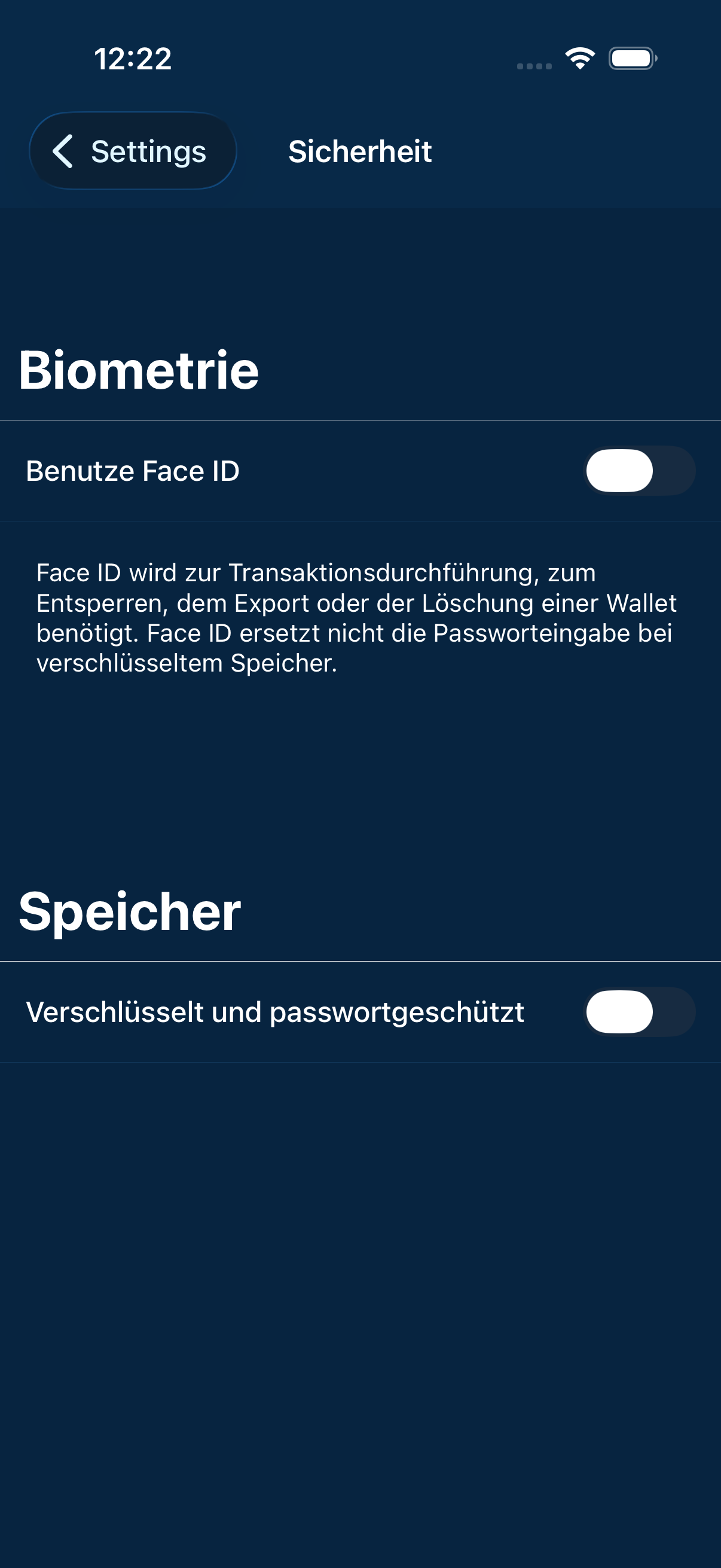
A lock for the app. Recommended as soon as it holds more than pocket money.
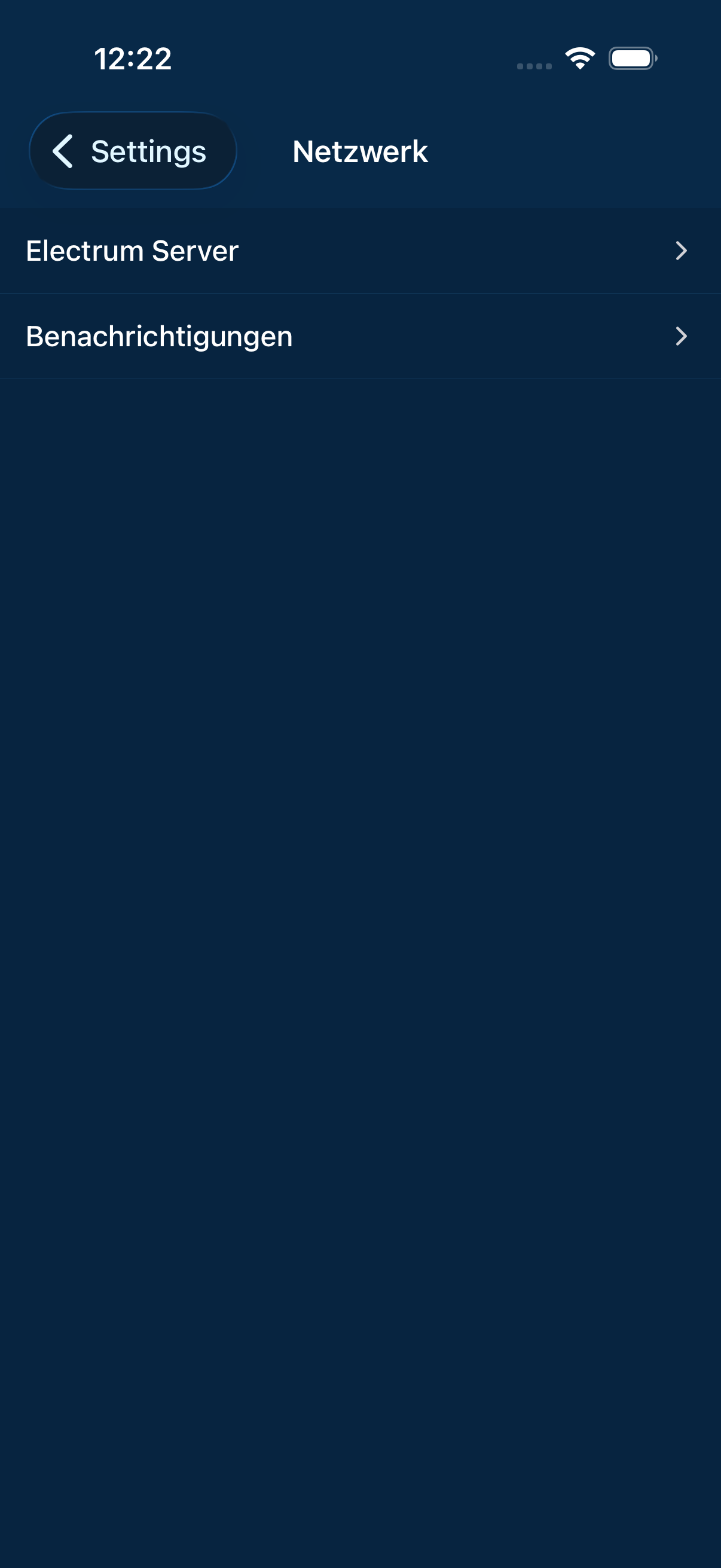
Settings for the connection, among them the server of Electrum in use.
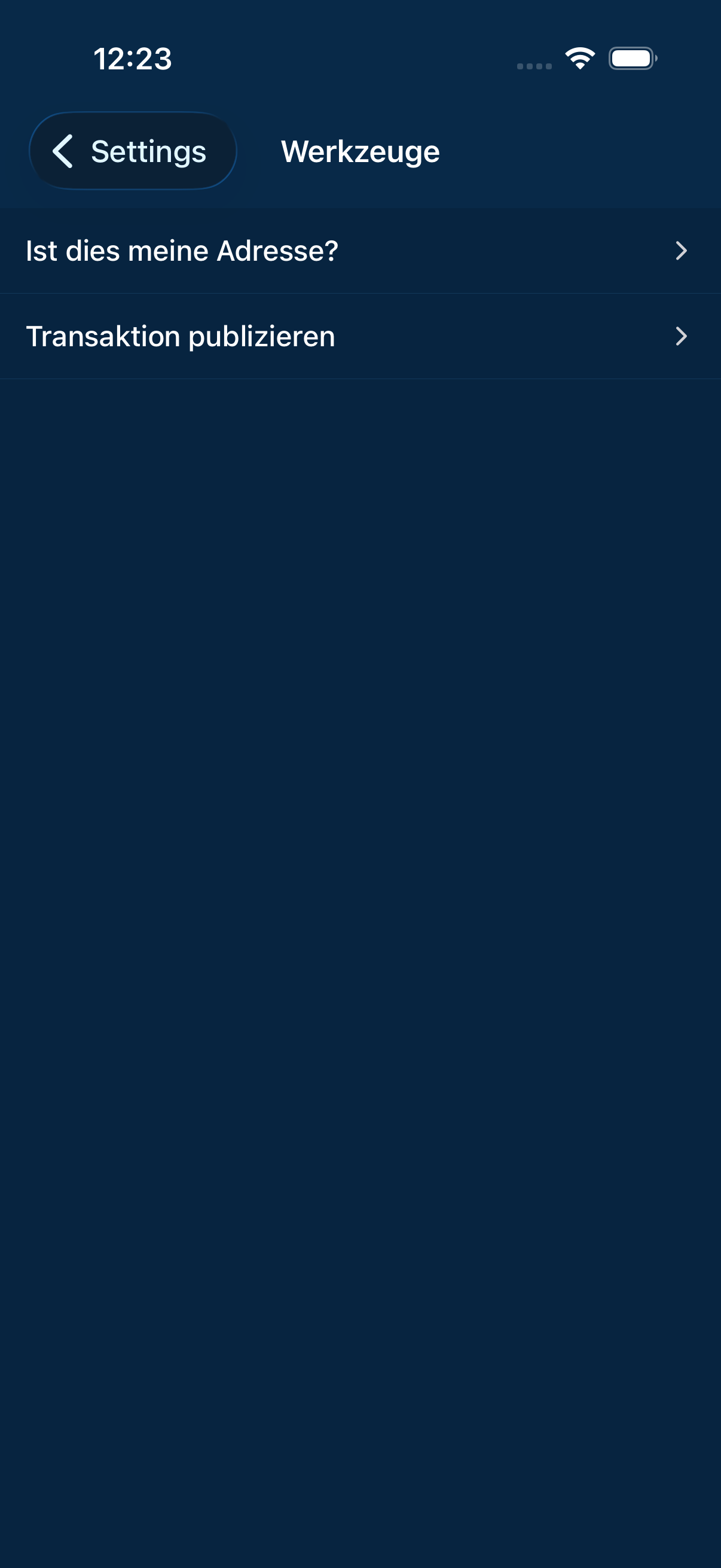
Utilities for rare occasions.
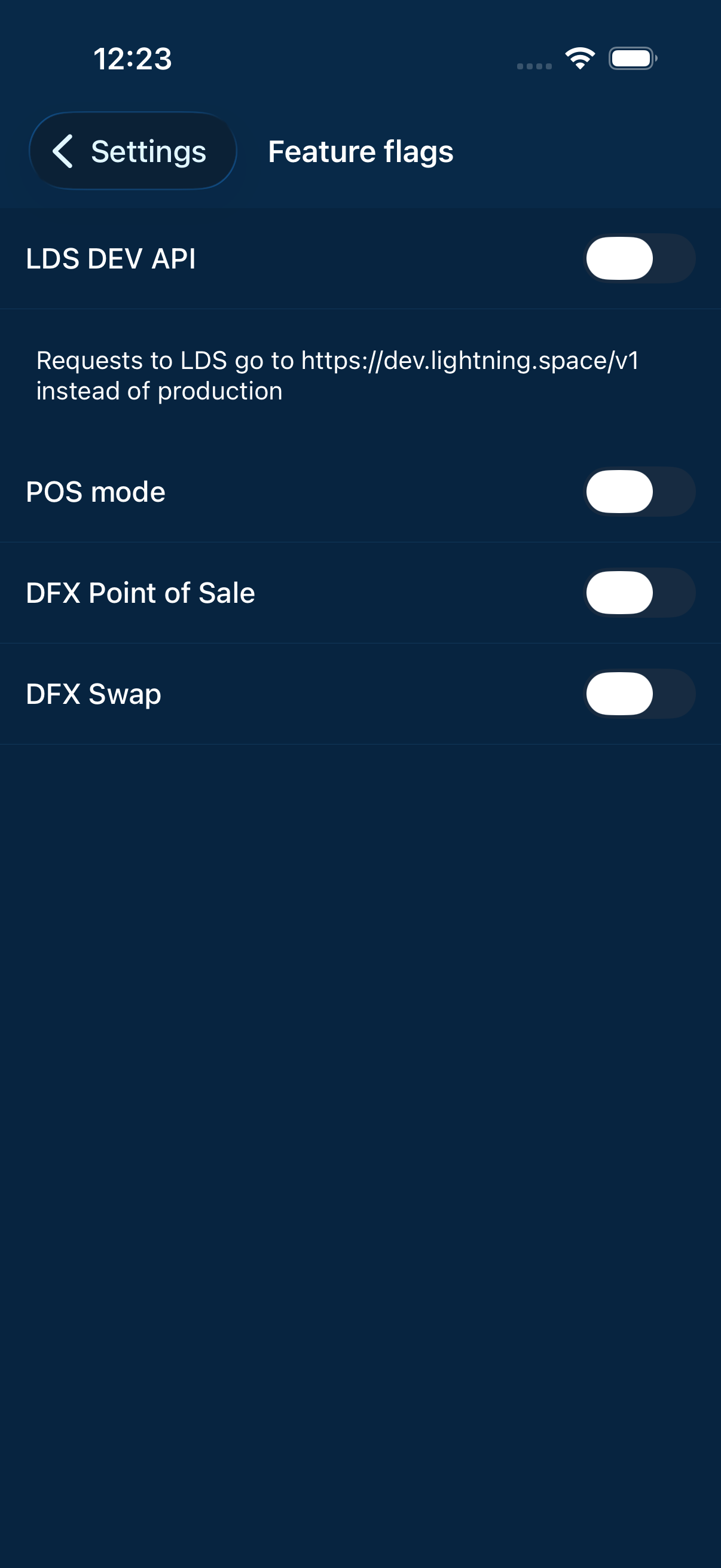
Switches for functions that are still being tried out.
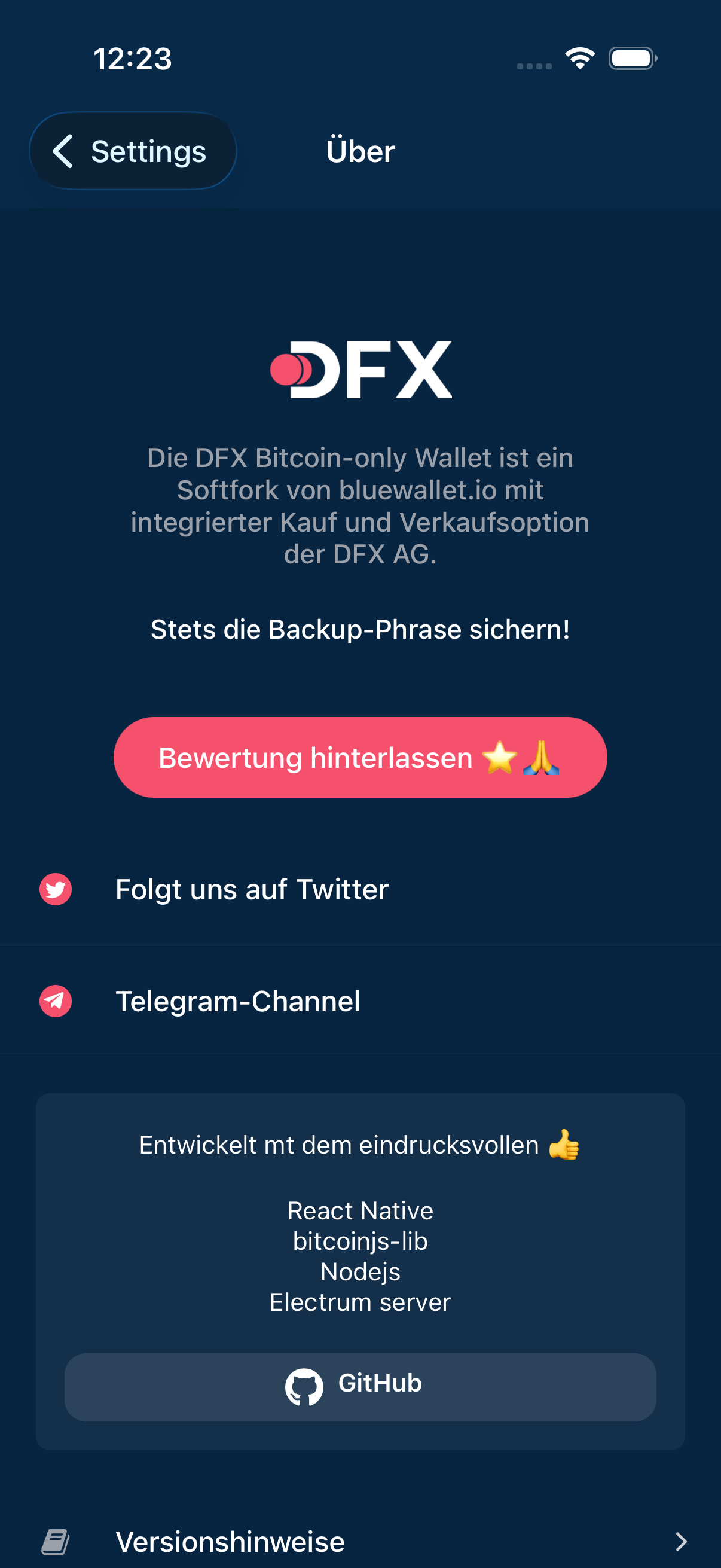
Version, licence and origin of the app.
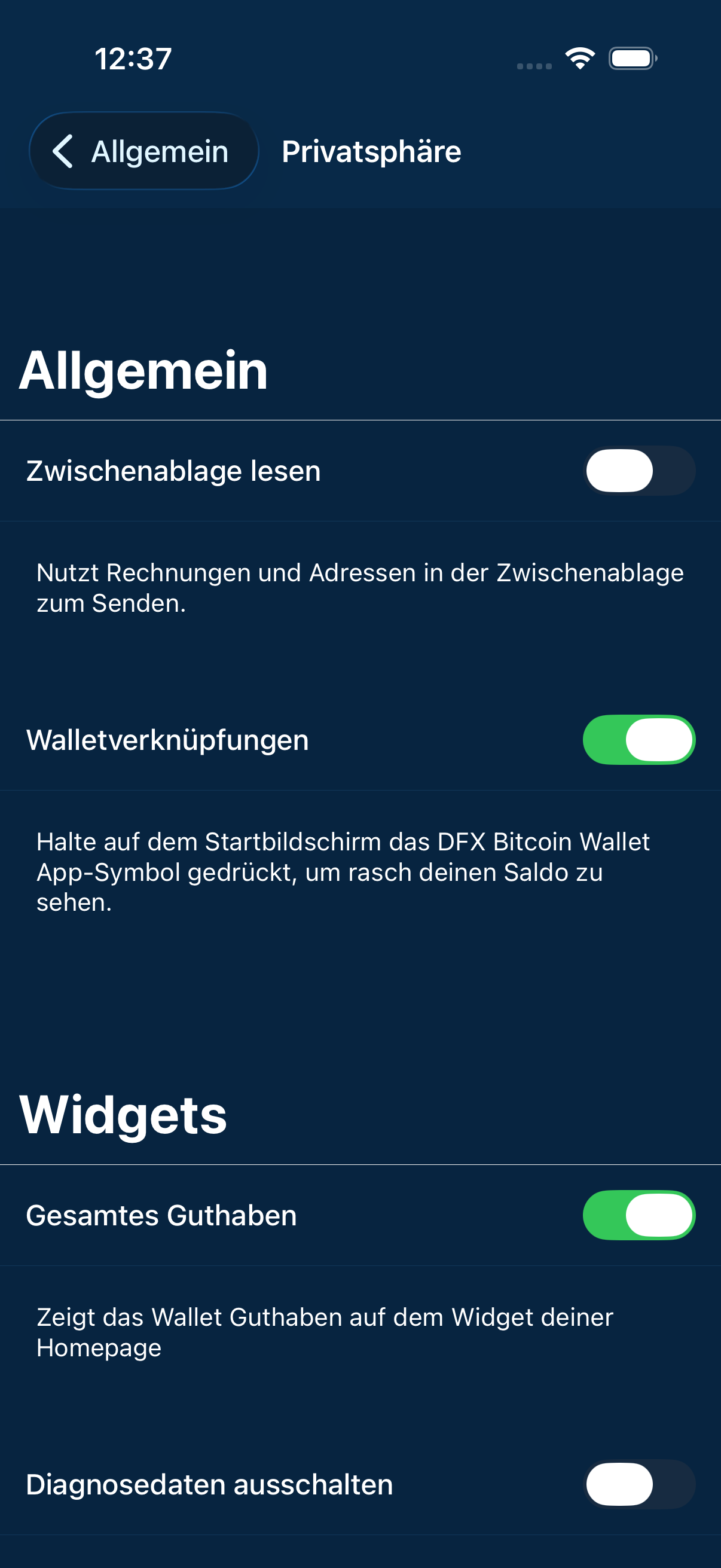
Settings for what the app reveals about itself.
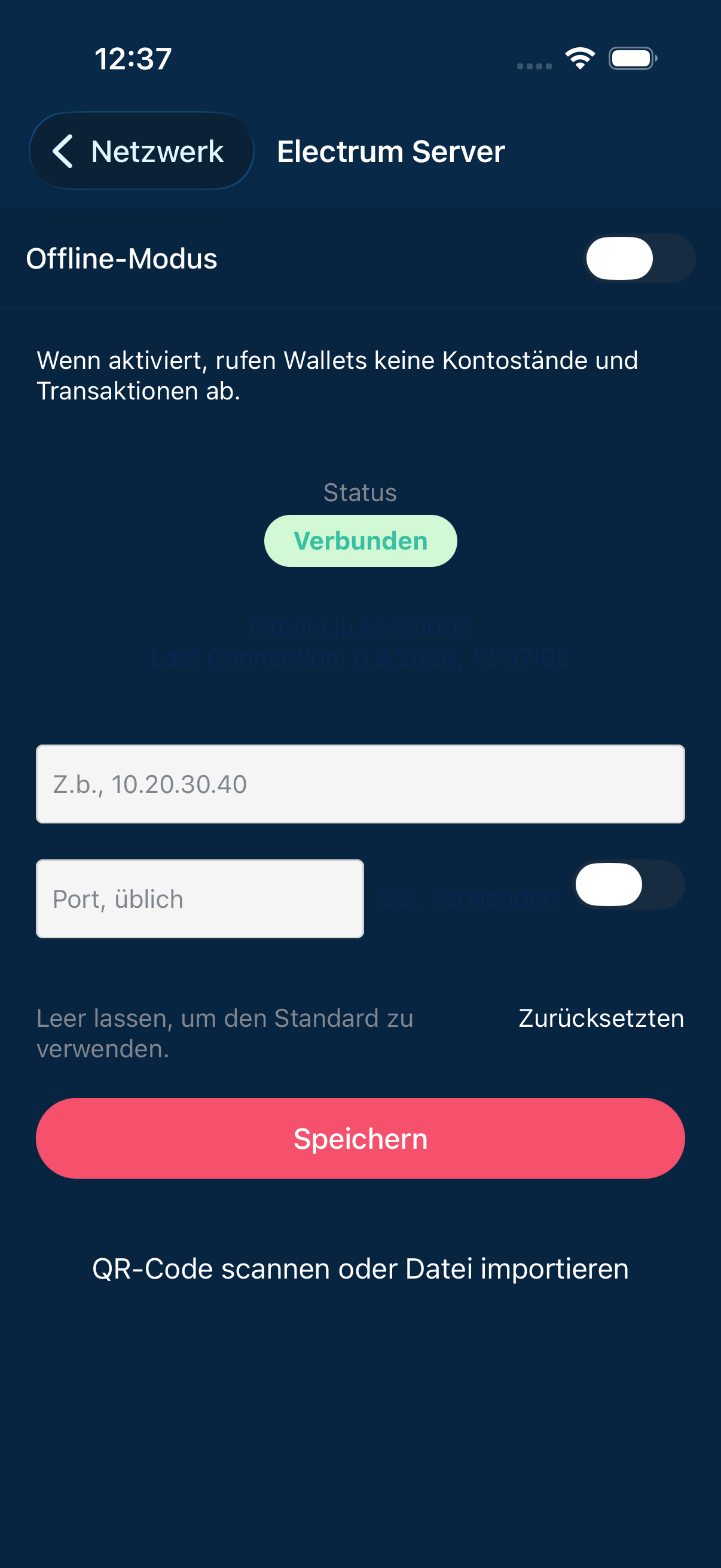
The wallet asks this server for the state of the blockchain. Running your own is the most private way.
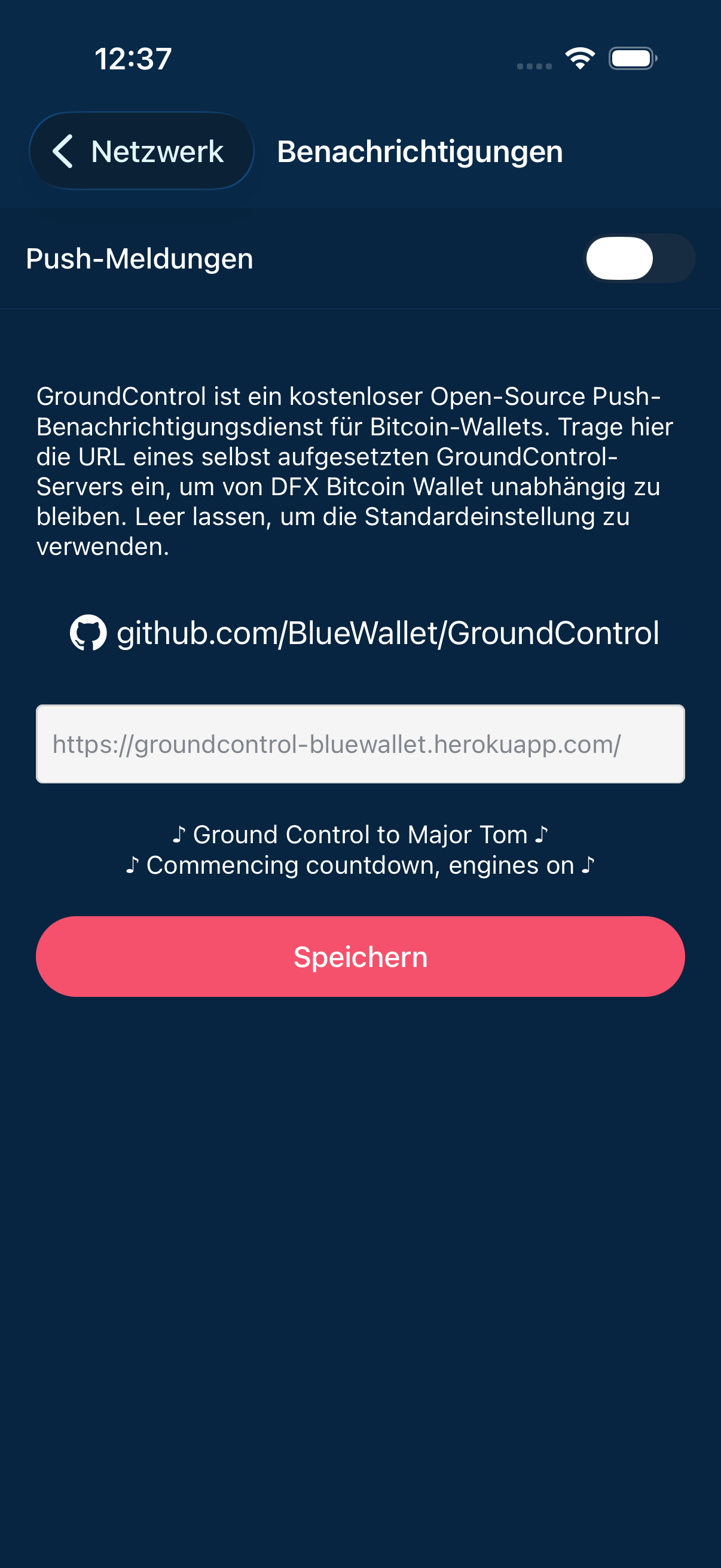
Which messages the app is allowed to send.
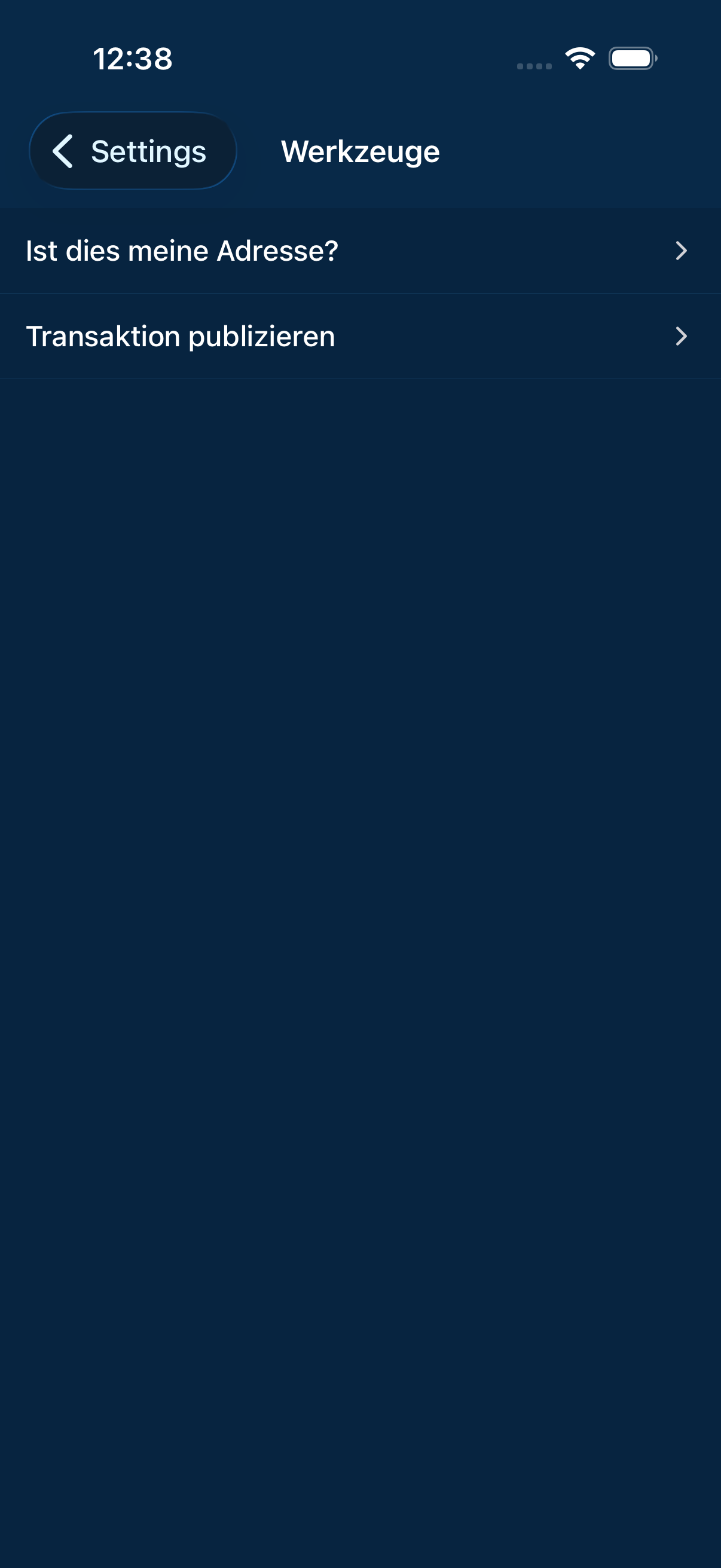
All tools at a glance.
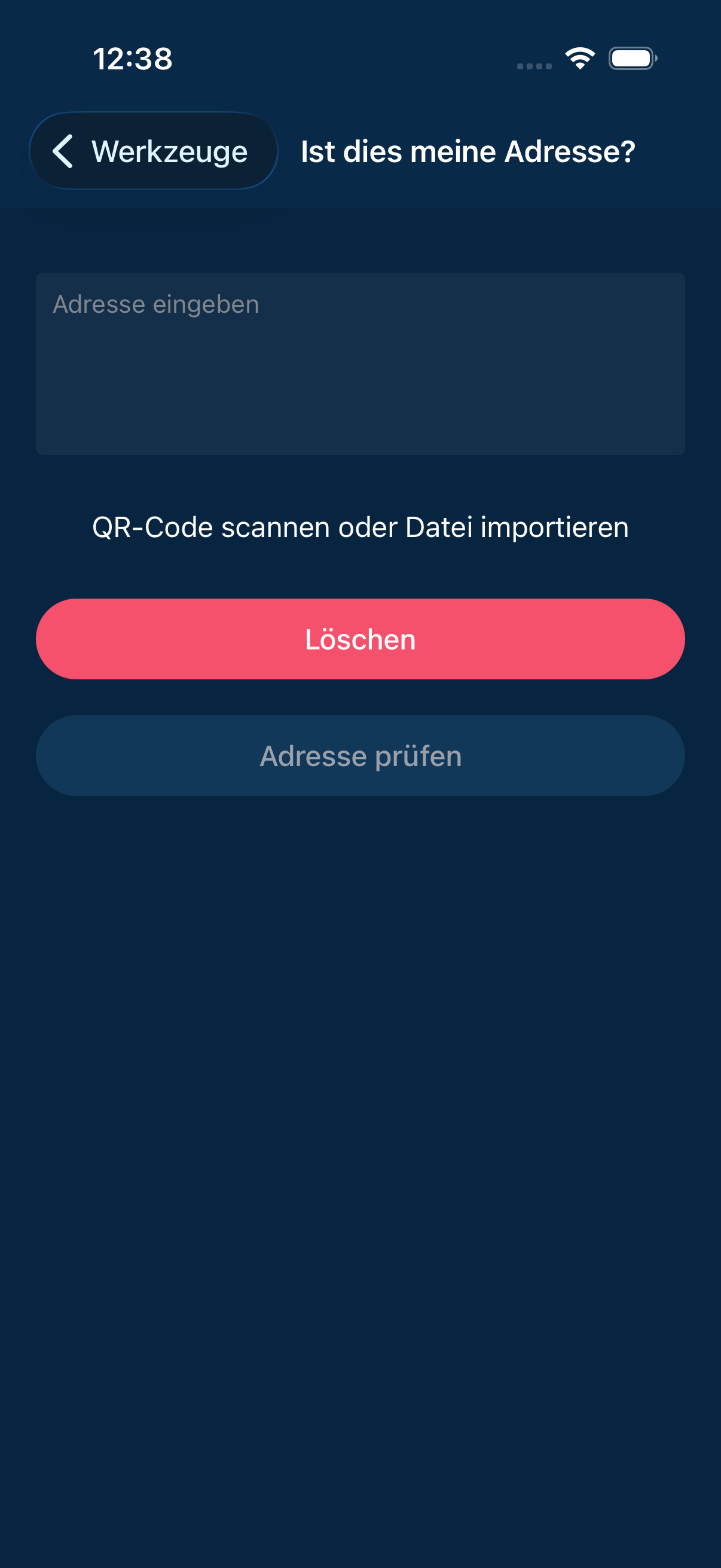
Checks whether an address belongs to your own wallet. Useful before a larger payment to yourself.
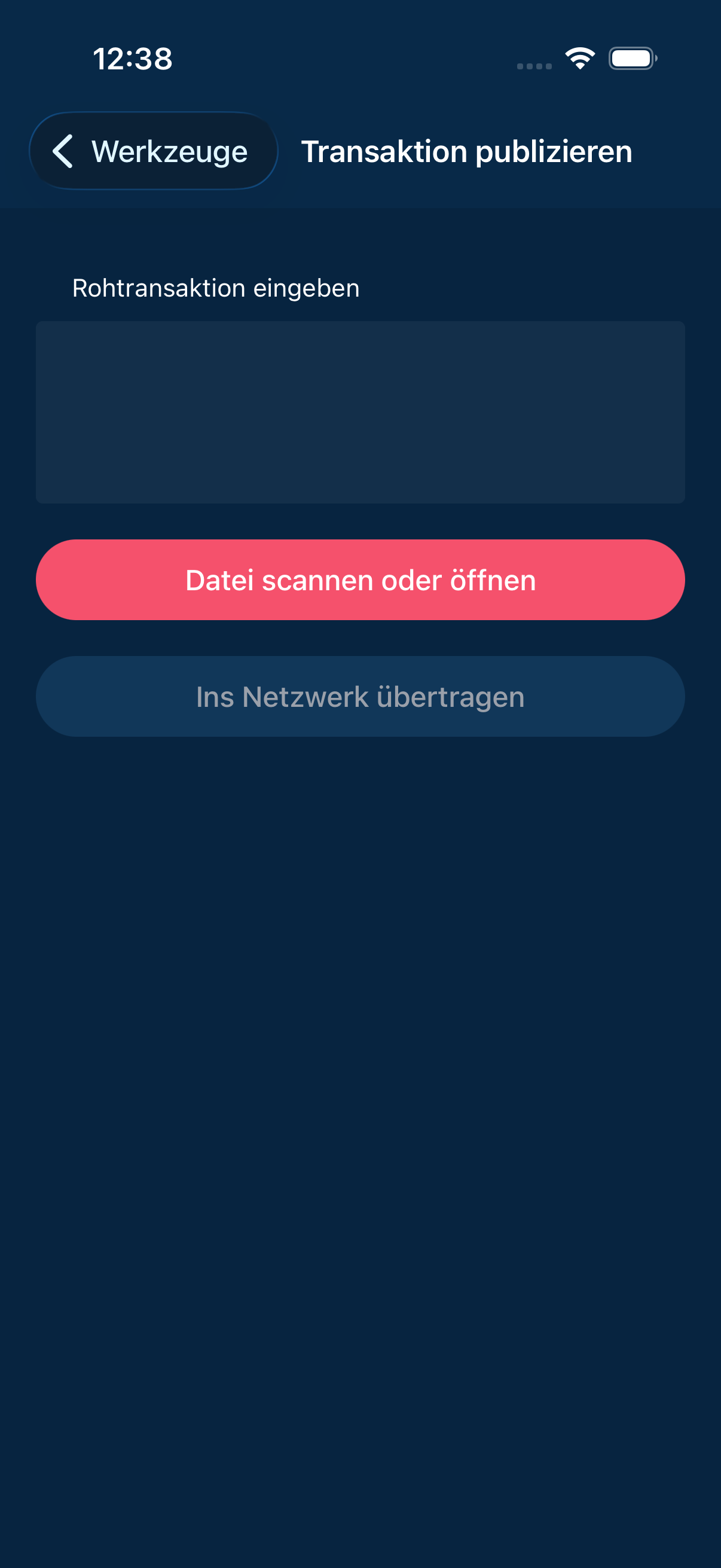
Push a transaction that was signed elsewhere into the network.
08For developers
08For developers
From here on the page shows material from the repository: the store texts, the app's image files and the technical documentation. None of it is needed to use the wallet.
01Store texts
28
01Store texts
Android (Play Store)
de-DE
- changelogs/default
- Fehlerbehebungen und Verbesserungen.
- full_description
- Mit dem DFX Bitcoin Wallet kannst du Bitcoin sicher und unkompliziert aufbewahren, senden und empfangen – mit Fokus auf Sicherheit und Einfachheit. Deine privaten Schlüssel bleiben jederzeit in deiner Hand. Bank to Wallet, Wallet to Bank. Sende und empfange weltweit in Sekunden und verändere das Finanzsystem direkt aus deiner Tasche.
- short_description
- Bitcoin & Lightning
- title
- DFX BTC Taro Wallet
en-US
- changelogs/default
- Bug fixes and performance improvements.
- full_description
- DFX Bitcoin Wallet allows you to store, send and receive Bitcoin with a focus on security and simplicity. You own your private keys at all times. Bank to Wallet, Wallet to Bank. You can instantly transact with anyone in the world and change the financial system right from your pocket.
- short_description
- Bitcoin & Lightning
- title
- DFX BTC Taro Wallet
iOS (App Store)
global
- copyright
- DFX AG
- primary_category
- FINANCE
de-DE
- description
- Mit dem DFX Bitcoin Wallet kannst du Bitcoin sicher und unkompliziert aufbewahren, senden und empfangen – mit Fokus auf Sicherheit und Einfachheit. Deine privaten Schlüssel bleiben jederzeit in deiner Hand. Bank to Wallet, Wallet to Bank. Sende und empfange weltweit in Sekunden und verändere das Finanzsystem direkt aus deiner Tasche.
- keywords
- bitcoin,wallet,lightning,selbstverwahrung,multisig,seed,kaufen
- marketing_url
- —
- name
- DFX BTC Taro Wallet
- privacy_url
- https://docs.dfx.swiss/de/privacy.html
- promotional_text
- —
- release_notes
- Fehlerbehebungen und Verbesserungen.
- subtitle
- Bitcoin & Lightning
- support_url
- https://dfx.swiss/
en-US
- description
- DFX Bitcoin Wallet allows you to store, send and receive Bitcoin with a focus on security and simplicity. You own your private keys at all times. Bank to Wallet, Wallet to Bank. You can instantly transact with anyone in the world and change the financial system right from your pocket.
- keywords
- bitcoin,wallet,lightning,self-custody,multisig,seed,non-custodial,buy bitcoin
- marketing_url
- —
- name
- DFX BTC Taro Wallet
- privacy_url
- https://docs.dfx.swiss/en/privacy.html
- promotional_text
- —
- release_notes
- Bug fixes and performance improvements.
- subtitle
- Bitcoin & Lightning
- support_url
- https://dfx.swiss/
02App image files
28
02App image files















03Technical documentation
23
03Technical documentation
- App Shell docs/product/features/app-shell.md
- Beitragen CONTRIBUTING.md
- Boltcard docs/product/features/boltcard.md
- Crash-Reports docs/crash-reports.md
- Critical Flows docs/product/critical-flows.md
- Dfx Services docs/product/features/dfx-services.md
- DFX-Setup dfx-setup.md
- FAQ FAQ.md
- Lightning Payments docs/product/features/lightning-payments.md
- Lightning Wallets docs/product/features/lightning-wallets.md
- Open Crypto Pay docs/product/features/open-crypto-pay.md
- README docs/product/README.md
- README README.md
- Receive docs/product/features/receive.md
- Release-Hinweise RELEASE.md
- Release-Pipeline docs/release-pipeline.md
- Release-Pipeline Setup docs/release-pipeline-setup.md
- Send docs/product/features/send.md
- Settings docs/product/features/settings.md
- Sicherheitsrichtlinie SECURITY.md
- Transactions docs/product/features/transactions.md
- Verhaltenskodex CODE_OF_CONDUCT.md
- Wallets docs/product/features/wallets.md